

Overview:
The Employees module is the central workspace in HR360Hub for managing your organisation's workforce. Authorised administrators and HR managers can view the complete employee directory, monitor active and inactive headcount at a glance, and add, edit, or update employee records.
This guide walks you through the complete process of logging into the HR360Hub portal, navigating to the Employees List, and adding a brand-new employee record. It also explains what happens after an employee is created — specifically, how the new employee receives a secure password-set link by email and how they use it to access the portal for the first time.
📜 Note: Only users with Administrator or HR Manager roles can access the Employees module and add new employees. If you cannot see the Employees menu in the sidebar, contact your system administrator to verify your role and permissions.
Section 1: Logging in to HR360Hub
Before you can add a new employee, you must sign in to the portal using your administrator credentials. Follow the steps below to log in.
1.Open your web browser and navigate to the HR360Hub portal URL provided by your organisation.
2.On the Welcome to HR360HUB login screen, enter your registered administrator Email in the Email field.
3.Enter your Password in the Password field. You can click the eye icon to toggle password visibility if needed.
4.Click the Login button to sign in. You will be redirected to the main Dashboard.
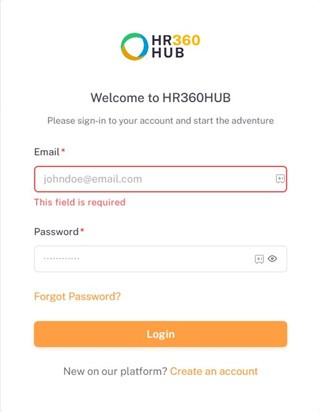
📜 Note:If you have forgotten your password and have previously set one, click Forgot Password? on the login screen to receive a reset link. Note that the Forgot Password option only works for accounts that have already completed the initial password setup (see Section 5).
Section 2: Accessing the Employees Module
After successfully logging in, you will land on the main Dashboard. Follow the steps below to navigate to the Employees List page.
1.On the left-hand sidebar, locate the Employees menu item.
2.Click on Employees to expand the sub-menu. The expanded menu will display the following items: Employees List, Employee Exit, and Exit Reason.
3.Click on Employees List (highlighted in the screenshot below) to open the Employees List page.

Section 3: Employees List Page
The Employees List page provides a complete overview of all employees in your organisation. At the top of the page, three summary cards display the total headcount and the breakdown of active versus inactive employees. Below the cards, a paginated table lists every employee record with key details and quick actions.

3.1. Summary Cards
The three cards at the top of the page give an instant snapshot of your workforce:
Column | Description |
Total Employees | The total number of employee records currently in the system, regardless of status. |
Active Employees | The number of employees whose status is Active. These are employees currently working at the organisation and able to access the portal. |
Inactive Employees | The number of employees whose status is Inactive. Inactive employees are retained in the system for record-keeping but do not have active access. |
3.2. Employees Table — Columns
The employee directory table contains the following columns. Each column header includes a sort of indicator that lets you sort the list ascending or descending by clicking on it.
Column | Description |
Name | The employee's full name with their official email address shown beneath. Each row also displays a circular avatar with the employee's initials or photo. |
Designation | The job title assigned to the employee at the time of creation (e.g. Training Manager, IT Support 2). |
Contact No | The employee's primary contact number, including the country code prefix. |
Country | The country associated with the employee's record. |
Role | The system role assigned to the employee, which determines what they can see and do inside HR360Hub (e.g. Employee, Admin, IT Support). |
Status | Indicates whether the employee is currently Active or Inactive. |
Actions | Quick action button (eye icon) to view the employee's full profile. |
Above the table, a Search icon lets you search for an employee by name or email, a Refresh icon reloads the list, and the Items per page dropdown controls how many rows are displayed at once.
Section 4: Adding a New Employee
To onboard a new employee in HR360Hub, you must create their record using the Add New Employee form. Once saved, the system automatically generates the employee's account and emails them a secure link to set their password.
4.1. Clicking the Add Employee Button
1.On the Employees List page, locate the top-right area of the table.
2.Click the + Add Employee button as shown below.

3.The Add New Employee form will open.
4.2. The Add New Employee Form
The Add New Employee form is organised into four logical sections: Basic Information, Employment Details, Payroll Information, and Licence Information. Required fields are marked with a red asterisk (*).

4.2.1 Basic Information
This section captures the employee's personal identity and primary contact details.
Field | Required | Description | |
First Name * | Yes | The employee's legal first name. Example: Harry. | |
Middle Name | No | The employee's middle name, if applicable. | |
Last Name * | Yes | The employee's legal last name or surname. Example: Maxwell. | |
Email * | Yes | The employee's official work email address issued by your organisation. This email is used for system login and for receiving the password-set link, account notifications, and HR communications. Do not enter the employee's personal email here. | |
Username * | Yes | A unique username that the employee will use to identify their account inside the system. | |
Contact Number * | Yes | The employee's primary contact number. Select the country dial code from the dropdown and enter the local number. | |
Gender * | Yes | Select the employee's gender from the dropdown options. | |
Personal Email | No | An optional personal email address (e.g. Gmail, Yahoo) for non-system communication. The personal email is never used for portal login or password-set links. | |
⚠️ Important:Always enter the employee's official organisational email in the Email field — not their personal email. The Set Password link, login notifications, and all HR-related system emails are sent only to this address. Using a personal email here will give the employee permanent personal-email-based access to the portal, which is not recommended.
4.2.2 Employment Details
This section captures where the employee fits in the organisation.
Field | Required | Description |
Employee ID | Auto | Automatically generated by the system when you select the Country and Role. This field is read-only and cannot be edited manually. Example: US-0526-1372. |
Role * | Yes | The system role assigned to the employee, which controls what they can access in HR360Hub (e.g. Employee, Admin, IT Support, HR Manager). |
Country * | Yes | The country in which the employee is based. This also feeds into the auto-generated Employee ID. |
Department * | Yes | The department the employee belongs to (e.g. IT Department, Finance, Operations). |
Grade * | Yes | The internal grade or band assigned to the employee (e.g. HR Tier II). |
Designation * | Yes | The official job title for the employee (e.g. IT Support 2, Training Manager). The available designations depend on the selected Department. |
Reporting To * | Yes | The manager or supervisor this employee reports to. Select an existing employee from the dropdown. |
Joining Date * | Yes | The date on which the employee officially joined the organisation. Use the calendar picker to select the date. |
Regional Hub * | Yes | The regional hub or business unit the employee is associated with (e.g. AIIT Solutions). |
4.2.3 Payroll Information
This section sets the employee's compensation parameters used by the Payroll module.
Field | Required | Description |
Currency * | Yes | The currency in which the employee's salary will be paid (e.g. USD, EUR, PKR). |
Payslip Type * | Yes | The pay frequency for this employee (e.g. Monthly, Bi-Weekly, Weekly). |
Basic Salary * | Yes | The employee's base salary amount in the selected currency. Example: 4000. |
4.2.4 Licence Information
Field | Required | Description |
Is Licensed * | Yes | Indicates whether this employee occupies a paid HR360Hub licence seat. Default is No. Select Yes only if your subscription plan covers an additional licensed user for this employee. |
4.3. Saving the Employee
After completing all required fields, save the record to create the employee account.
1.Review every section of the form to ensure all information is accurate.
2.Click the Save Employee button (orange button at the bottom-right of the form) to create the record.
3.If the form is valid, it will close and the new employee will appear as a row in the Employees List.
4.To discard your changes without saving, click the Cancel button instead.

⚠️ Important:If the form cannot be saved, check that all required fields (marked with *) have been completed. Common issues include: a duplicate email or username already in use, missing Department/Grade/Designation selections, or an invalid contact number format.
Once saved, the new employee record appears immediately at the top of the Employees List with a default status of Active:

Section 5: First-Time Password Setup
As soon as the employee record is saved, HR360Hub automatically sends a welcome email to the employee's official email address (the value entered in the Email field of the Add New Employee form). This email contains a secure Set Password link that the new employee must use to create their password and access the portal for the first time.
5.1. The Welcome Email
The welcome email confirms that the account has been created and provides:
Column | Description |
The official email address registered for the employee. | |
Employee ID | The auto-generated employee identifier (e.g. US-0526-1372). |
Join Date | The joining date entered during account creation. |
Set Password button | A secure, one-time link that opens the password setup page in the employee's browser. |

⚠️ Important-Link Validity:The Set Password link in the welcome email is valid for 24 hours from the moment the employee account is created. After 24 hours, the link will expire and clicking it will no longer allow the employee to set a password. If the link expires, the administrator will need to manually trigger a new password-set email from the employee's profile.
⚠️ Important-Forgot Password will not work:If the new employee does not click the Set Password link within 24 hours and instead goes straight to the login page and clicks Forgot Password? the password reset will NOT work for them. The Forgot Password flow is only available for accounts that have already completed the initial password setup at least once. New employees must use the Set Password link from their welcome email for their very first password.
5.2. Clicking the Set Password Link
The employee should open the welcome email in their inbox and click the orange Set Password button to begin the password setup process.

5.3. The Set Employee Password Page
Clicking the Set Password link opens the Set Employee Password page in the employee's browser. The page displays two password fields and the live password requirements checklist.

5.3.1 Password Requirements
The new password must satisfy all of the following rules. The page validates each rule live as the employee types and shows a green tick next to each requirement once it is met:
Column | Description |
At least 8 characters | The password must contain a minimum of eight characters. |
At least one uppercase letter | Must include at least one uppercase letter (A–Z). |
At least one lowercase letter | Must include at least one lowercase letter (a–z). |
At least one number | Must include at least one numeric digit (0–9). |
At least one special character | Must include at least one special character such as ! @ # $ % & * |
5.3.2 Setting the Password
1.In the New Password field, enter a password that meets all of the requirements listed above. Each requirement turns green as it is satisfied.
2.Re-enter the same password in the Confirm Password field. The page displays Passwords match in green when both values are identical.
3.Once all requirements are green and the passwords match, click the orange Set Password button at the bottom of the page.

5.4. Logging in for the First Time
After the password is successfully set, the employee is redirected to the Welcome to HR360HUB login screen. They can now sign in using their official email address and the password they just created.

💡 Tip:After the first successful login, the employee can use the standard Forgot Password? option on the login screen if they ever need to reset their password in future. Forgot Password works normally once the initial setup has been completed.
Summary:
The following table summarises the end-to-end process covered in this guide:
Step | Action | Location |
1 | Log in to HR360Hub | Login screen → enter administrator Email and Password → Login |
2 | Open the Employees module | Left Sidebar → Employees → Employees List |
3 | Open the Add Employee form | Employees List page → top-right + Add Employee button |
4 | Fill Basic Information | First Name, Last Name, official Email, Username, Contact Number, Gender |
5 | Fill Employment Details | Role, Country, Department, Grade, Designation, Reporting To, Joining Date, Regional Hub |
6 | Fill Payroll Information | Currency, Payslip Type, Basic Salary |
7 | Fill Licence Information | Is Licensed (Yes/No) |
8 | Save the employee | Click Save Employee at the bottom-right of the form |
9 | Employee receives welcome email | Set Password link sent to the official email — valid for 24 hours |
10 | Employee sets their password | Click Set Password in email → meet all requirements → Set Password |
11 | Employee logs in | Login screen → official email + new password → Login |