

Overview
The Performance Hub module in HR360Hub provides a structured framework for defining organizational goals, assigning them to employees, tracking progress, and managing the approval lifecycle. The module is built around the concept of Goals — discrete, measurable objectives that can be created by managers, assigned to individual employees or entire departments, and tracked through a defined pipeline of statuses from assignment through to completion and approval.
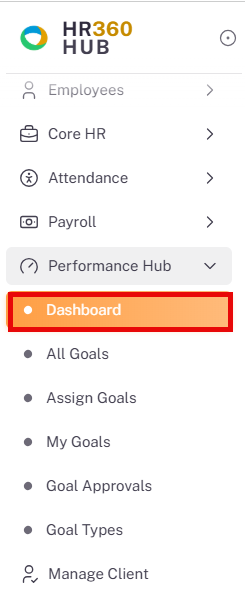
The module is divided into six sub-sections: Dashboard, All Goals (goal management for admins and managers), Assign Goals(assign created goals to individual or whole departments), My Goals (goal tracking for individual employees), Goal Approvals (review and approval workflow), and Goal Types (configuration of goal categories). Goal Types must be configured before goals can be created, as every goal requires a Goal Type classification.
📜 Note: Access to sub-sections varies by role. All Goals, Assign Goals and Goal Approvals are primarily used by HR Managers and Super Admins. My Goals is accessible to all employees who have been assigned one or more goals.
Section 1: Accessing the Performance Hub Module
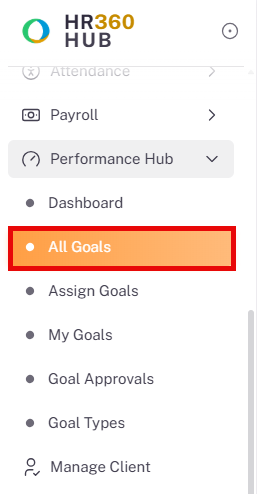
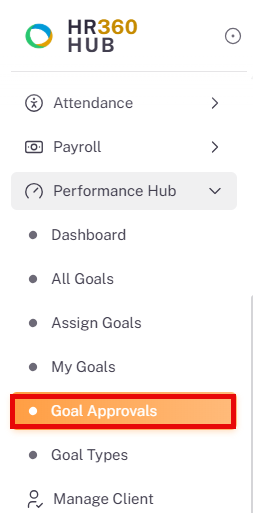
After logging in to the HR360Hub portal, locate the Performance Hub on the left-hand sidebar. Click it to expand the sub-menu. The following sub-sections are available: Dashboard, All Goals, Assign Goals, My Goals, Goal Approvals, and Goal Types.
Click the desired sub-section to navigate to it.
Section 2: Dashboard
The Dashboard provides a high-level summary of goal activity across the organization. It is the default landing page for the Performance Hub module and is intended for HR managers and administrators who need a consolidated view of goal pipeline health. The Dashboard has been enhanced with additional analytics, including a submission trend chart, a goal submission funnel, breakdowns by goal type and department, a deadline tracker, a top-performers table, and a table of recent submissions.
Navigate to Performance Hub → Dashboard to open this page.
2.1. Summary Cards
At the top of the Overview page, four summary cards display the current state of goals across the organization.

Card | Description |
Total Goals | The total number of goals created across the organization. |
Approved Goals | The number of goal submissions that have been reviewed and approved by a manager. |
Pending Approval | The number of goal submissions awaiting a manager's review decision. |
Rejected Goals | The number of goal submissions that were reviewed and rejected by a manager. |
2.2. Submission Trend and Goal Submission Status
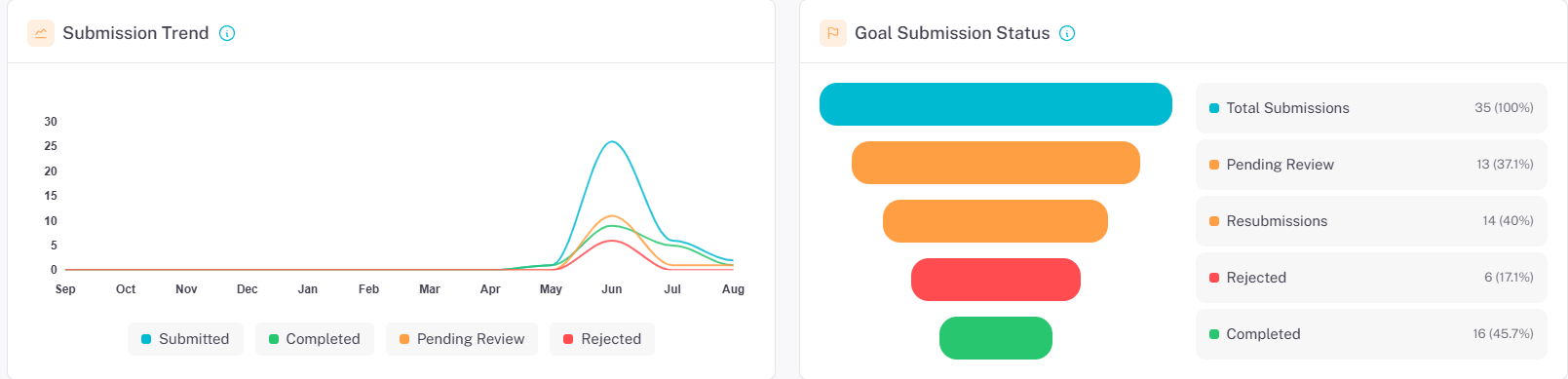
Below the summary cards, two side-by-side panels chart submission activity over time and break down submissions by stage.
Panel | Description |
Submission Trend | A line chart plotting Submitted, Completed, Pending Review, and Rejected goal counts by month from September through August, letting managers spot seasonal spikes in submission activity. |
Goal Submission Status | A funnel chart showing the volume of submissions at each stage — Total Submissions, Pending Review, Resubmissions, Rejected, and Completed — with the count and percentage of the total shown alongside each stage. |
2.3. Goal Summary, Submission by Goal Type, and Submissions by Department
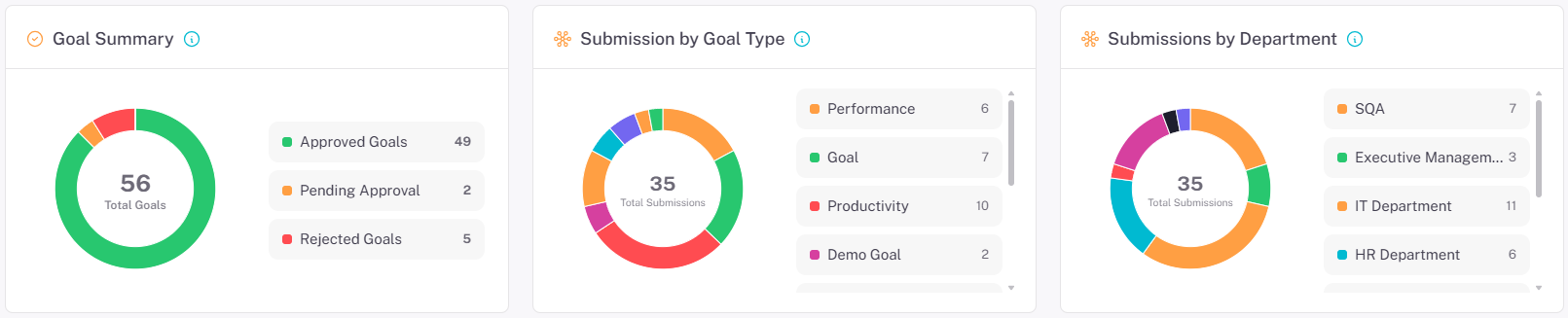
Three donut-chart cards break down goals and submissions by status, goal type, and department.
Card | Description |
Goal Summary | A donut chart showing the Total Goals count at its centre, broken down by Approved Goals, Pending Approval, and Rejected Goals in the legend beside it. |
Submission by Goal Type | A donut chart showing the Total Submissions count at its centre, broken down by goal type (e.g. Productivity, Annual Goal, Demo Goal, Demo) with the count for each type listed in a scrollable legend. |
Submissions by Department | A donut chart showing the Total Submissions count at its centre, broken down by the department each submission originated from (e.g. IT Department, HR Department, SQA, Executive Management) with the count for each department listed in a scrollable legend. |
2.4. Goals Near Deadline
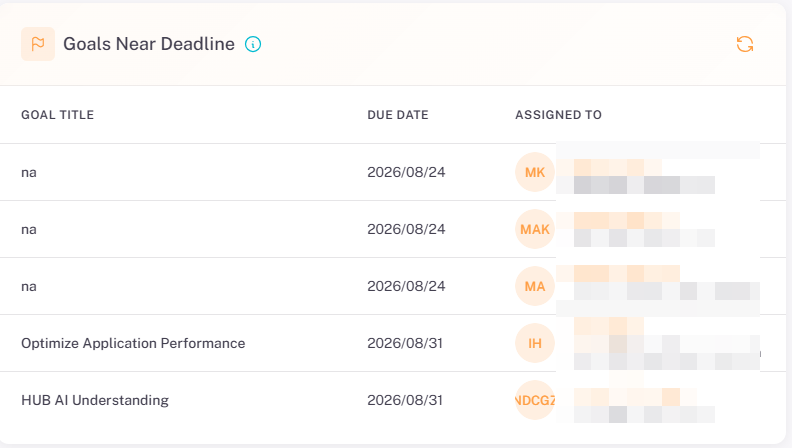
The Goals Near Deadline panel lists upcoming goal due dates so managers can follow up before they are missed. Click the refresh icon to reload the list.
Column | Description |
Goal Title | The title of the goal approaching its due date, or na if no title was set. |
Due Date | The date by which the goal is due, shown in YYYY/MM/DD format. |
Assigned To | An avatar showing the initials of the employee the goal is assigned to. |
2.5. Average Goal Achievement (Top Performers)
The Average Goal Achievement panel ranks employees by their goal completion performance. Click the refresh icon to reload the list.
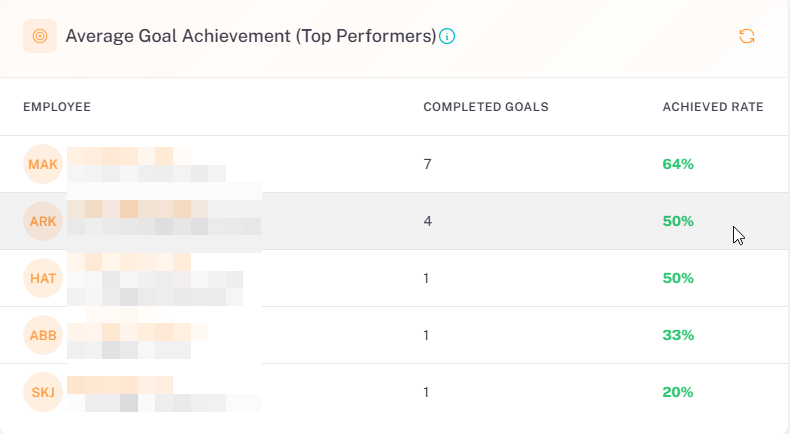
Column | Description |
Employee | An avatar showing the initials of the employee. |
Completed Goals | The number of goals the employee has completed. |
Achieved Rate | The percentage of assigned goals the employee has successfully completed, shown in green. |
2.6. Recent Goal Submissions
The Recent Goal Submissions table lists the most recently submitted goals across the organisation. Click the refresh icon to reload the list.
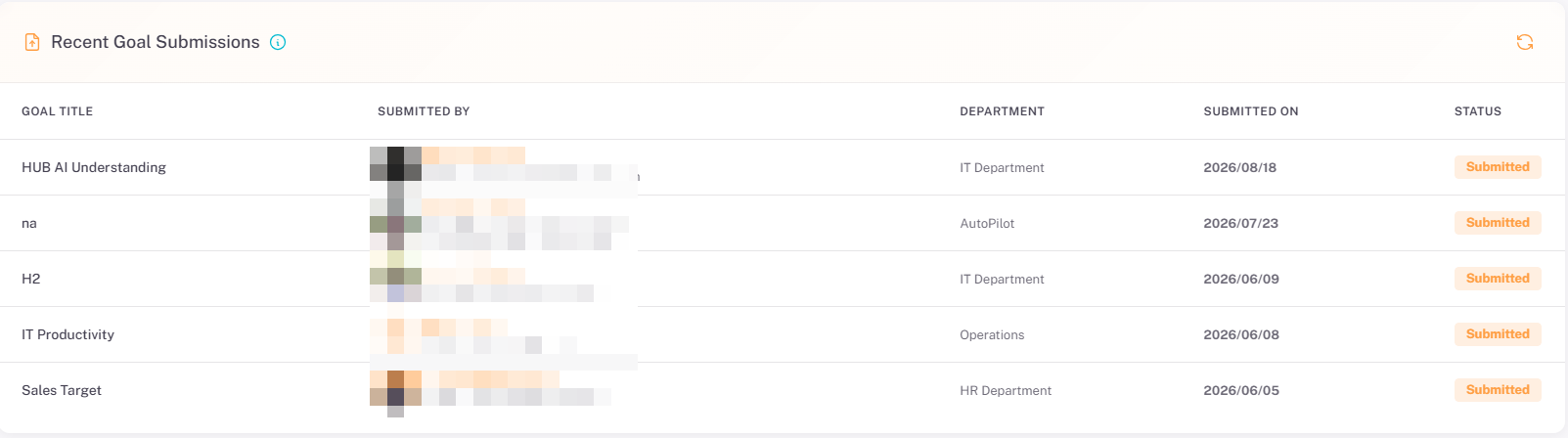
Column | Description |
Goal Title | The title of the submitted goal. |
Submitted By | An avatar showing the photo or initials of the employee who submitted the goal. |
Department | The department from which the submitting employee belongs to. |
Submitted On | The date the goal was submitted, shown in YYYY/MM/DD format. |
Status | The current status of the submission, shown as a badge (e.g. Submitted). |
💡 Tip: Use the Goals Near Deadline and Recent Goal Submissions panels together to prioritize follow-ups: check which goals are approaching their due date, then cross-reference recent submissions to see who has already submitted their work for review.
Section 3: All Goals
The All Goals page provides administrators and HR managers with a complete list of all goals created in the system, regardless of assignee. From this page, managers can create new goals, edit existing ones, and view full goal details including assignees, progress, and activity history.
3.1. Goals List
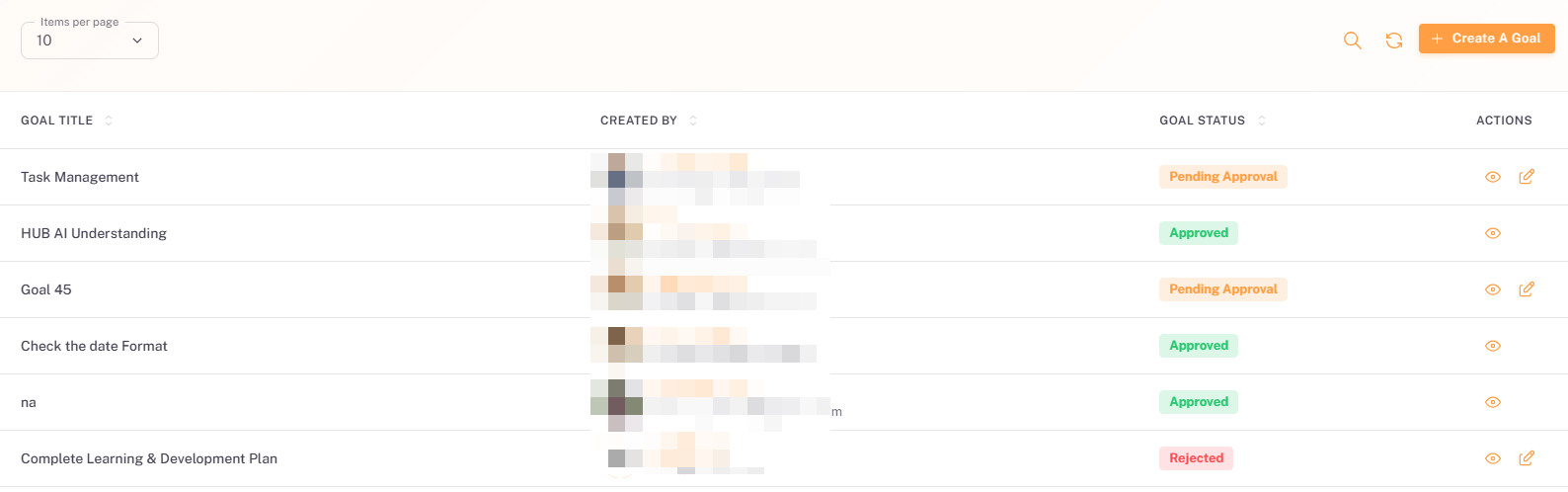
Navigate to Growth Hub → All Goals to open this page.
Column | Description |
Goal Title | The full title of the goal. Long titles are truncated in the list view; click the eye icon to view the complete title. |
Created By | Id and email address of user who created the goal |
Goal Status | The current activation status of the goal: ACTIVE (green badge) or INACTIVE (orange badge). This controls whether the goal is currently open for assignee action. |
Actions | Eye icon (👁) to view full goal details. Pencil icon (✏️) to edit the goal. |
3.2. Creating a Goal
Click the + Create A Goal button at the top-right of the All Goals page. The goal creation wizard opens with a three-step flow: Goal Details, Attachments, and Review & Publish.
Step 1: Goal Details
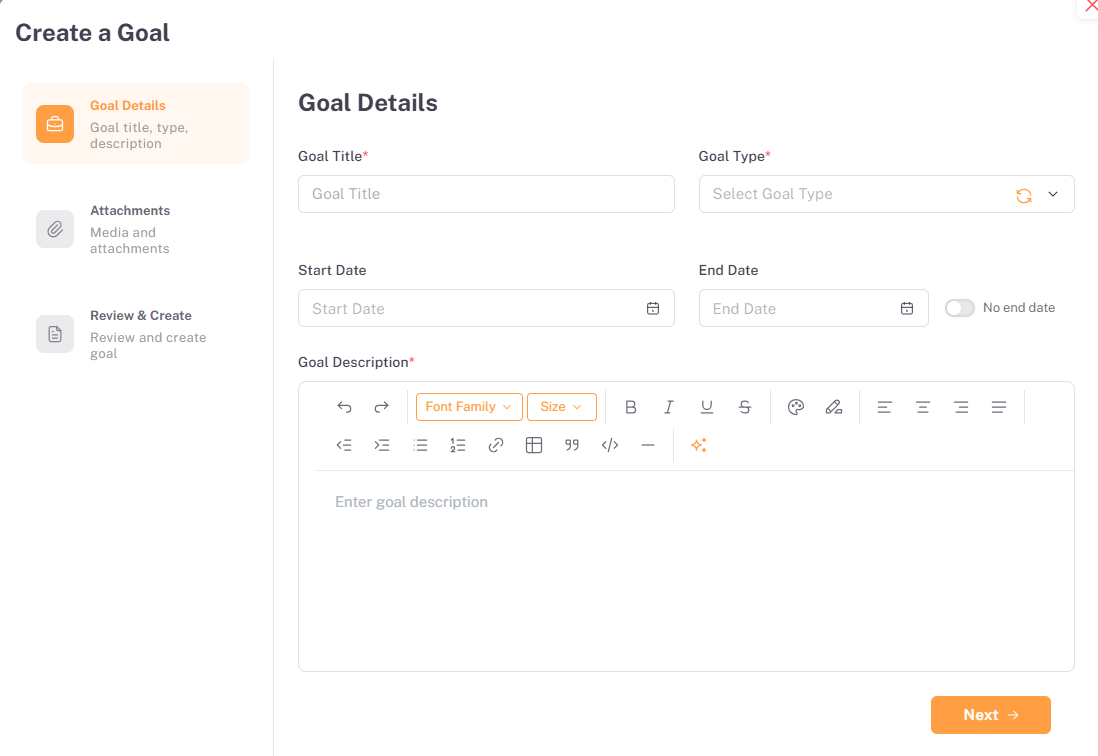
Field | Required | Description |
Goal Title | Yes | A clear, descriptive name for the goal (e.g. Standardize Coding Practices Across All Development Teams, Improve Sprint Velocity By 20% Within Six Months). |
Goal Type | Yes | Select the category that best describes the goal from the dropdown. Categories are configured in the Goal Types sub-section. |
Assigned To | Yes | Select the user name from dropdown to whom the goal is assigned |
Start Date | No | The date from which this goal becomes active. Select using the date picker. |
End Date | No | The target completion date. Toggle the No end date switch to create an open-ended goal with no fixed deadline. |
Goal Description | No | A rich-text description of the goal, its objectives, and any relevant context. Supports Bold, Italic, Underline, Strikethrough, and text alignment formatting. |
Click Next to proceed to Step 2.
Step 2: Attachments
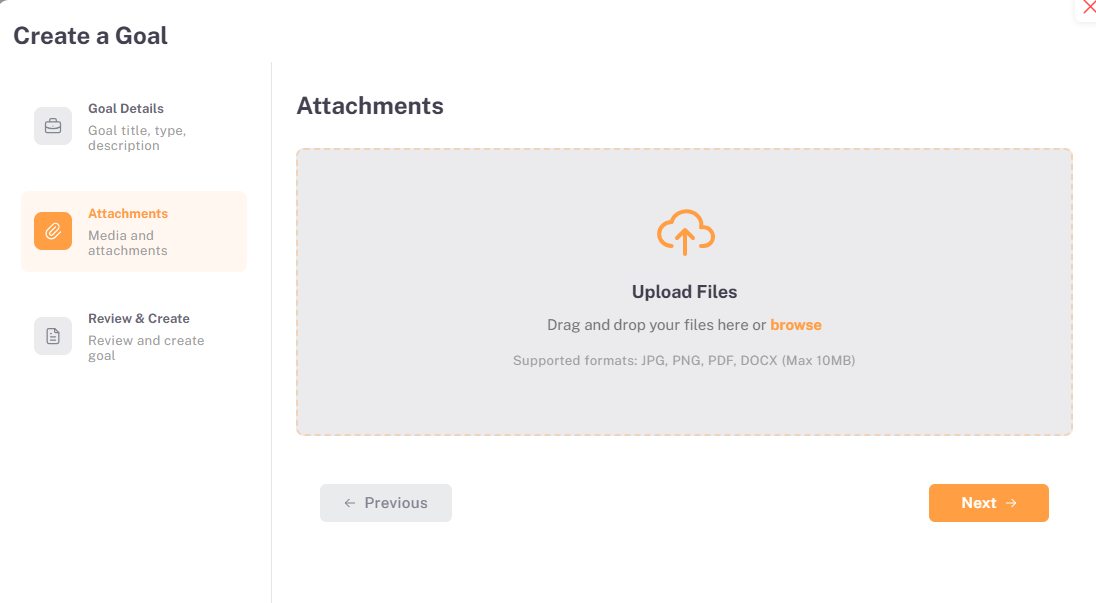
The Attachments step allows supporting documents to be uploaded alongside the goal definition. Drag and drop files into the upload zone or click browse to select files. Supported formats are JPG, PNG, PDF, and DOCX, with a maximum file size of 10 MB per file. Click + Add File to add multiple attachments.
Click Next to proceed to Step 3, or Previous to go back to Step 1.
Step 3: Review & Publish
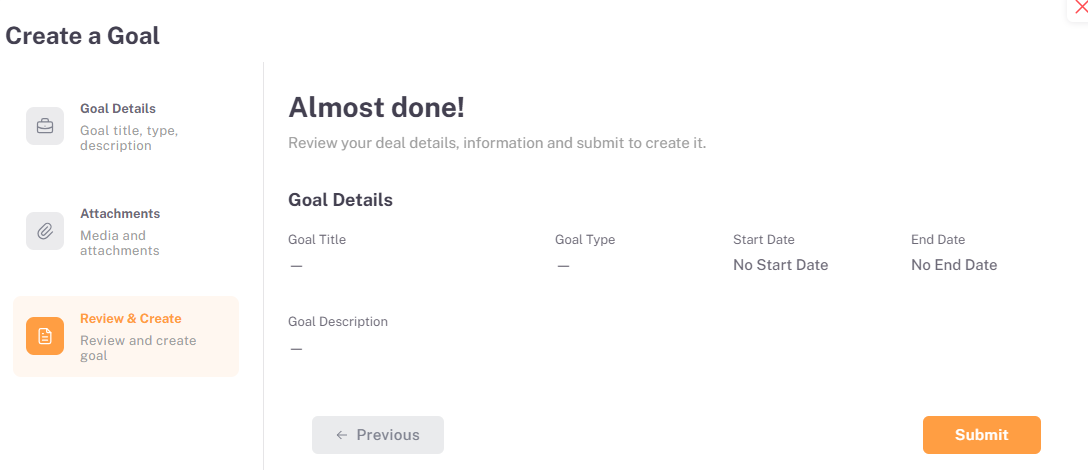
The Review & Publish step displays a read-only summary of all entered information: Goal Title, Goal Type, Start Date, End Date, Goal Description, and any attached files. Review all details carefully before submission.
Click Submit (orange button, bottom-right) to create the goal, or Previous to return and make changes.
3.3. Viewing a Goal
Click the eye icon (👁) on any goal row to open the full goal detail page. The goal detail page is organised into three tabs: Goal Details, Assignees, and Activity Log.
Goal Details Tab:
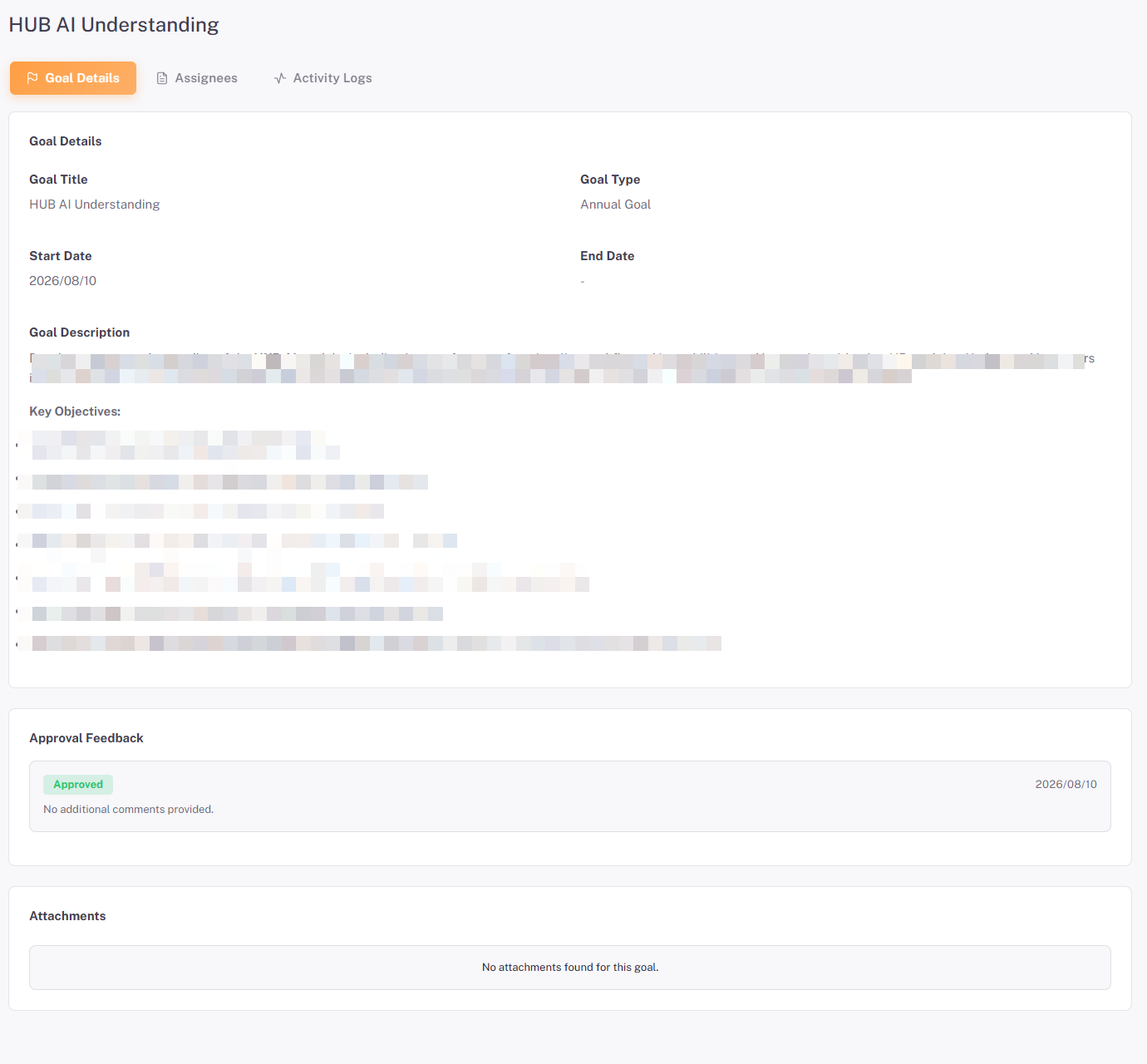
The Goal Details tab displays the complete goal configuration: Goal Title, Goal Type, Start Date, End Date, full Goal Description and Attachments. Click Back to List to return to the All Goals list.
Assignees Tab:
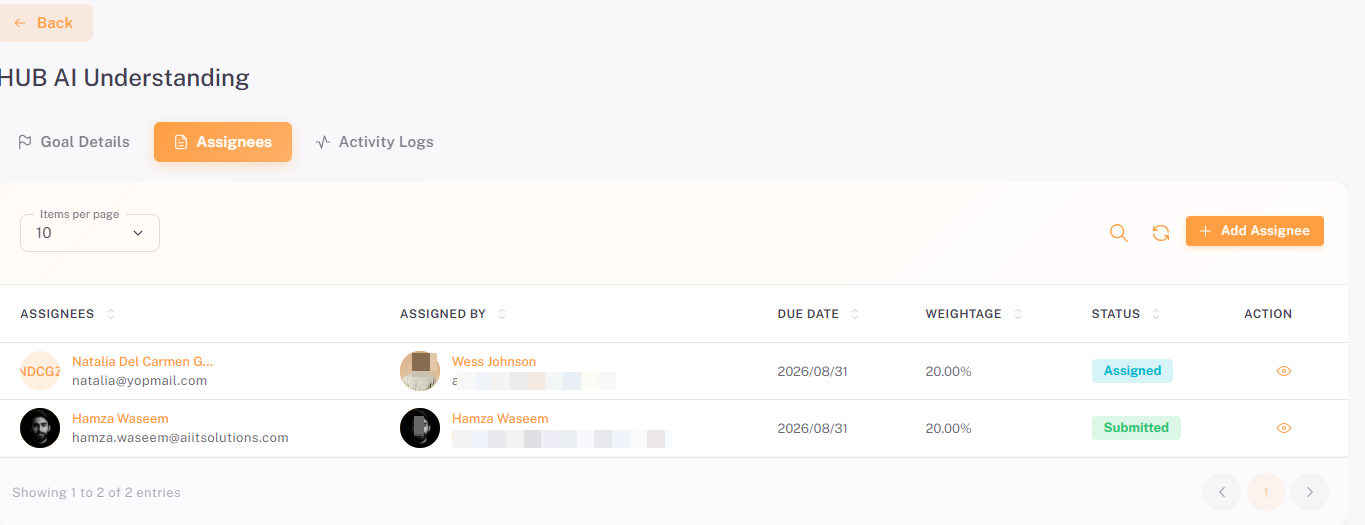
The Assignees tab lists all employees assigned to this goal. Each row displays the assignee’s name, the Assigned By user who made the assignment (name and email), Due Date and time, Weightage (the proportion of the goal allocated to this assignee as a percentage), and the current Status of their assignment.
Status | Description |
Assigned | The goal has been assigned to the employee but they have not yet acknowledged it. |
Acknowledged | The employee has received and acknowledged the goal assignment. |
In Progress | The employee has started working on the goal. |
Submitted | The employee has completed their work and submitted it for review. |
Click + Add Assignee (orange button, top-right) to assign the goal to additional employees or departments. Click the eye icon to view a specific assignee’s submission details. Click the delete icon (🗑) to remove an assignee from the goal (available for Submitted entries).
Adding Assignees
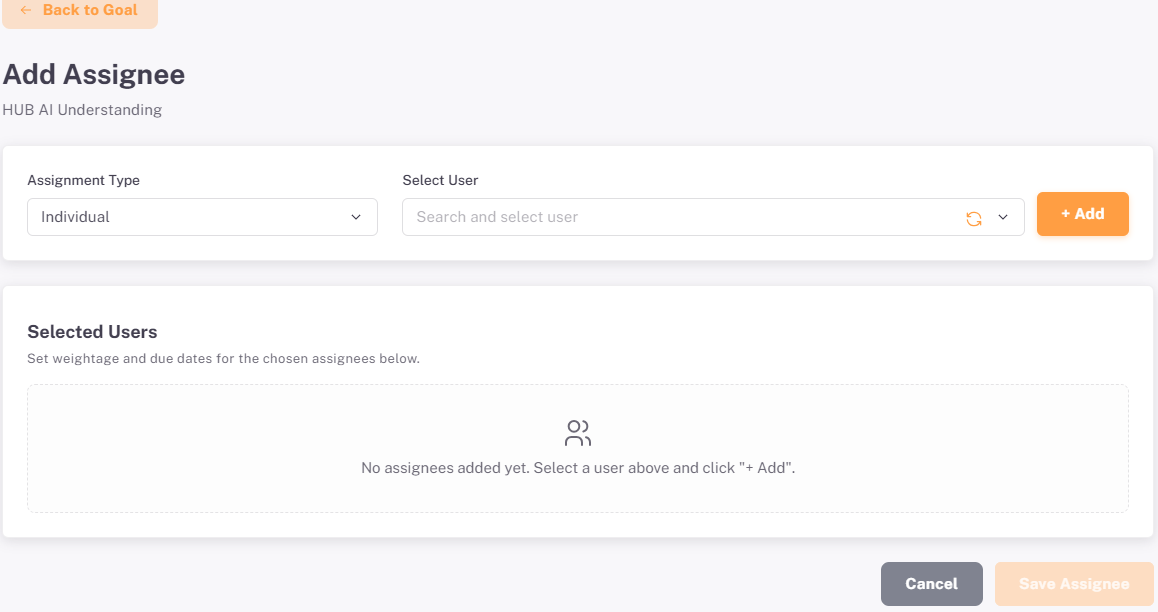
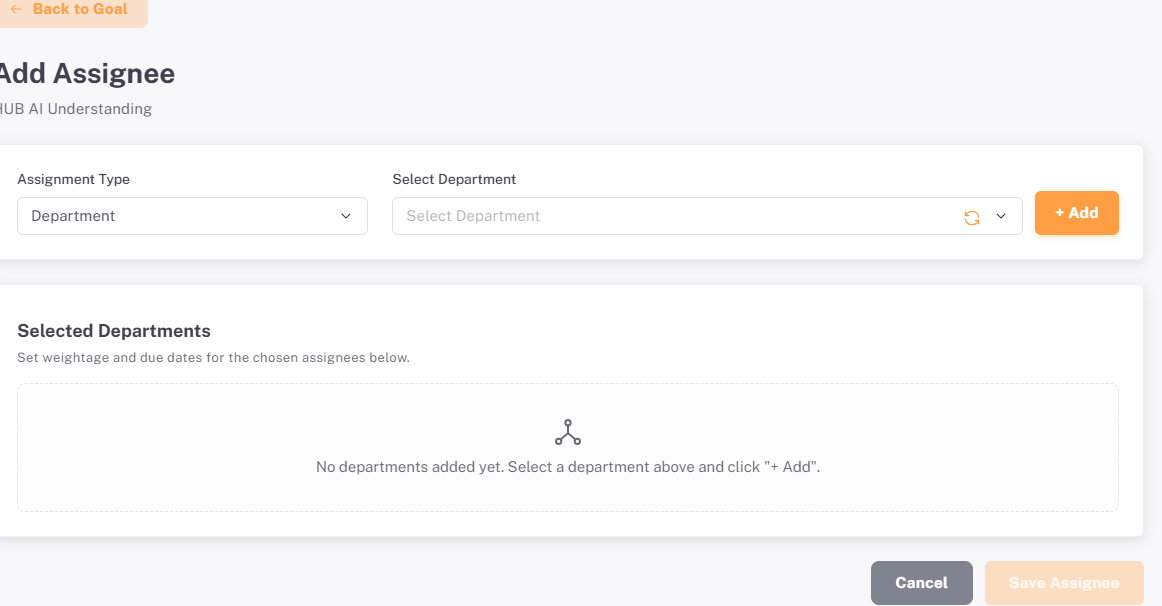
Click + Add Assignee on the Assignees tab. The Add Assignee page opens. Two assignment types are available:
Assignment Type | Description |
Individual | Assign the goal to one or more specific employees. Use the Select User dropdown to search for and select an employee, then click + Add to move them to the Selected Users list. For each selected user, set the Weightage (% of goal responsibility) and Due Date before saving. |
Department | Assign the goal to all active employees within a department. Use the Select Department dropdown to choose the department, then click + Add to populate the Selected Departments list. Set the Weightage (per employee) and Due Date for each entry. The Weightage Remaining column shows the remaining unallocated percentage. |
Click Save Assignee (orange button, bottom-right) to confirm the assignments, or Cancel to discard.
⚠️ Important: The total Weightage across all assignees for a single goal should sum to 100%. Assigning more than 100% may cause reporting inconsistencies. Verify weightage allocations before saving, particularly when assigning by Department, as each member of the department receives the specified weightage individually.
Activity Log Tab:

Figure 16: Goal detail page — Activity Log tab showing the full audit trail of goal events
The Activity Log tab provides a complete, chronological audit trail of all events related to the goal. Each entry records the Activity Date/Time, Type (event badge), Action By (the user who triggered the event), and a Comments field with a brief description.
Activity Type | Description |
Goal Assigned | Recorded when a goal is assigned to an employee or department, including the weightage allocated. |
Goal Acknowledged | Recorded when the assigned employee acknowledges receipt of the goal. |
Status Update | Recorded when an employee updates their progress status (e.g. moving to In Progress). |
Goal Submitted | Recorded when an employee marks their work as complete and submits it for review. |
Goal Approved | Recorded when a manager or HR approves the submitted goal work. |
Section 4: Assign Goals
The Assign Goals page provides a centralised place to assign already-created goals to employees or departments, without needing to open each goal individually from the All Goals list. Two tabs are available: Employees, for assigning a goal to one or more specific employees, and Departments, for assigning a goal to every active employee within a department.
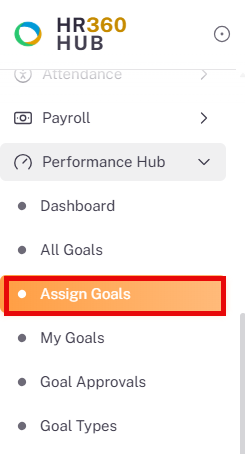
Navigate to Performance Hub → Assign Goals to open this page.
4.1. Assign Goals to Employees
The Employees tab is selected by default. Select an employee, then choose a goal to assign to them.
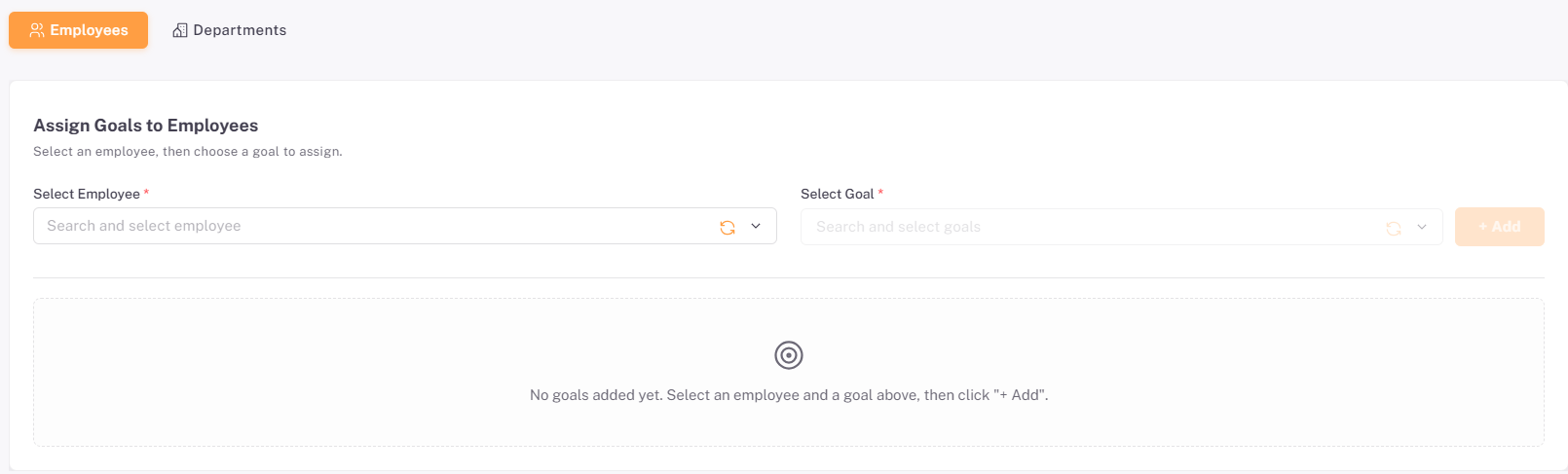
Field | Description |
Select Employee | Search for and select the employee the goal should be assigned to. |
Select Goal | Search for and select the goal to assign. Only goals already created in All Goals are available here. |
Click + Add to add the employee/goal pairing to the list below. The list starts empty, showing "No goals added yet. Select an employee and a goal above, then click “+ Add”." until at least one pairing has been added.
4.2. Assign Goals to Departments
Switch to the Departments tab to assign a goal to every active employee within a selected department at once.
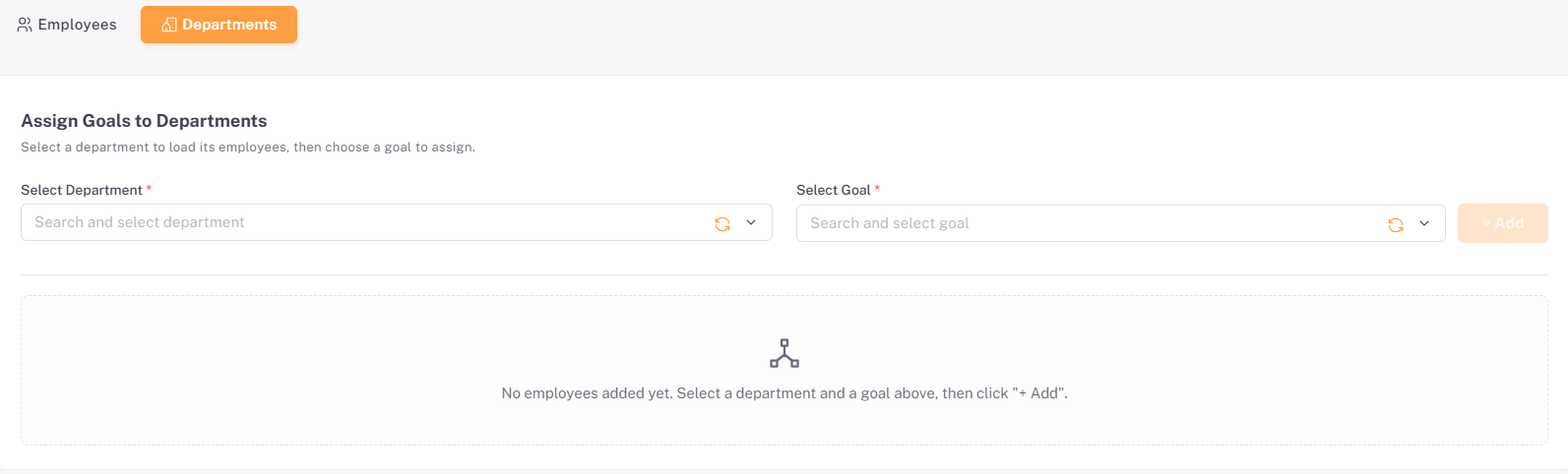
Field | Description |
Select Department | Search for and select the department whose employees should receive the goal. Selecting a department loads its list of active employees. |
Select Goal | Search for and select the goal to assign to the department's employees. |
Click + Add to load the department's employees against the selected goal. The list starts empty, showing "No employees added yet. Select a department and a goal above, then click “+ Add”." until a department and goal have been added.
📜 Note: Goals must already exist in All Goals before they can be assigned from this page. If the goal you need does not appear in the Select Goal dropdown, create it first from the All Goals page.
Section 5: My Goals
The My Goals page is the employee-facing view of the Performance Hub module. It lists all goals that have been assigned to the currently logged-in employee. From this page, employees can track their assigned goals, view goal and submission details, and submit their completed work for review.
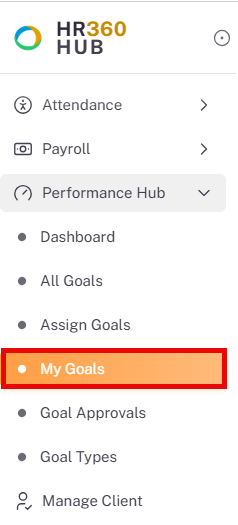
5.1. My Goals List
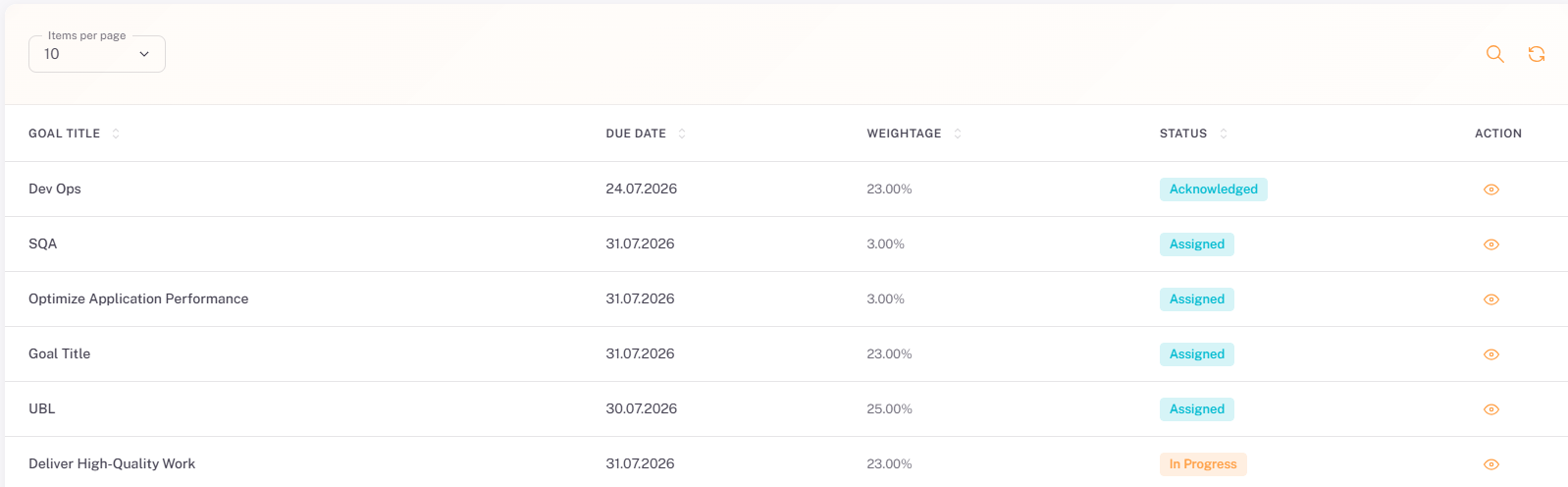
Navigate to Growth Hub → My Goals to open this page.
Column | Description |
Goal Title | The full title of the assigned goal. Long titles are truncated in the list; click the eye icon to view the full title and details. |
Due Date | The deadline by which the employee must complete and submit their work for this goal assignment. |
Weightage | The percentage of the goal allocated to this employee (e.g. 20%, 30%). Reflects the employee's share of the overall goal. |
Status | The current status of this employee's assignment, shown as a badge: Assigned, Acknowledged, In Progress, or Submitted. |
Action | Eye icon (👁) to view the full goal and submission details for this assignment. |
5.2. Viewing and Submitting Goal Details
Click the eye icon (👁) on any goal row to open the goal details page for that assignment.
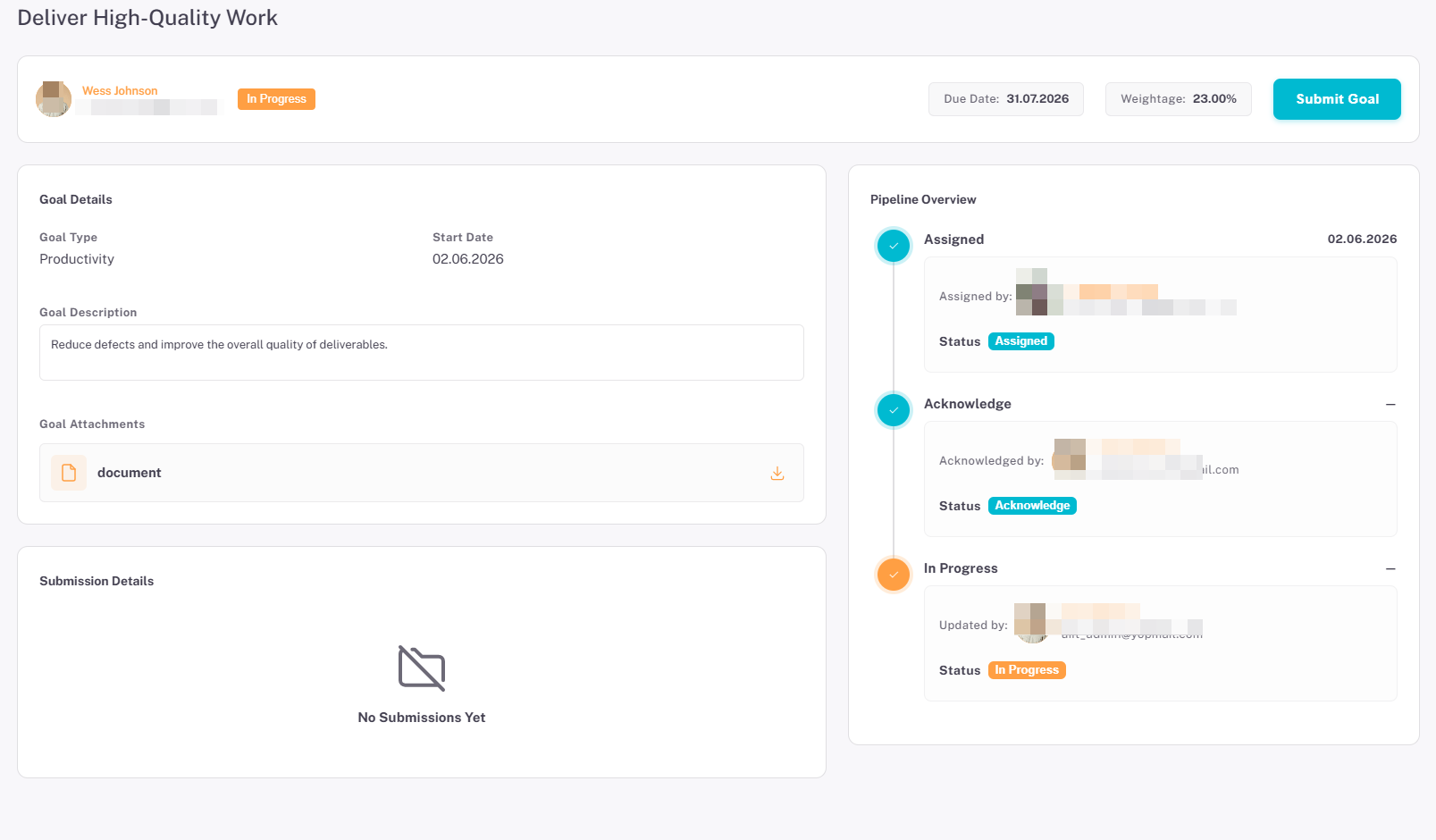
The header of the page shows the assignee's avatar, name and email, the current Status badge, the Due Date, the Weightage, and a Submit Goal button. The body of the page is split into three panels:
Panel | Description |
Goal Details | Displays the Goal Type, Start Date, the Goal Description, and any Goal Attachments provided by the assigner. Attachments can be downloaded using the download icon. |
Submission Details | Displays the employee's submitted comment and any supporting document once work has been submitted. Shows "No Submissions Yet" until the employee submits their goal work. |
Pipeline Overview | A vertical timeline showing every stage of the goal's lifecycle for this assignee — Assigned, Acknowledge, In Progress, Submitted, and the final approval decision. Each stage shows who performed the action and the Status badge at that stage. |
5.3. Submitting Goal Work
Once the assigned work is complete, click Submit Goal in the header of the goal details page to open the Submit Goal Work dialog.
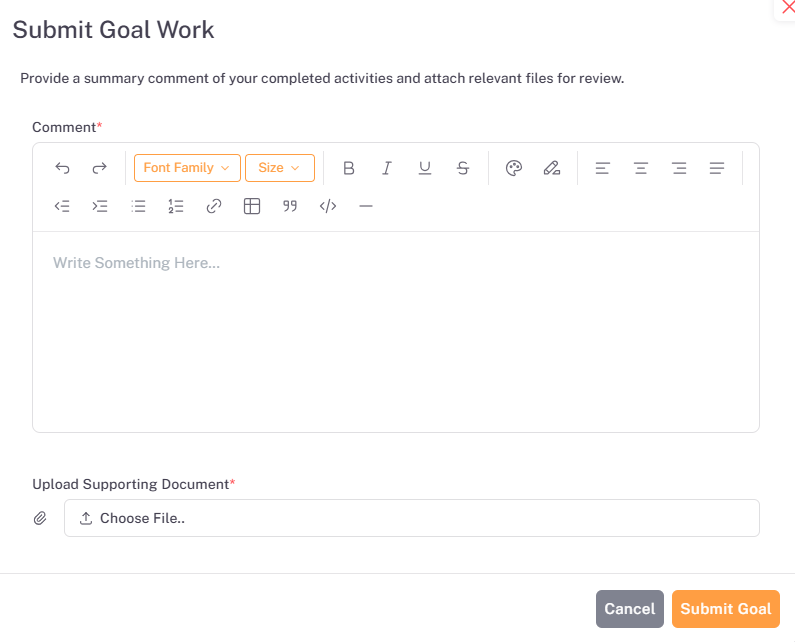
Field | Required | Description |
Comment | Yes | Enter a summary of the completed activities using the rich-text editor. |
Upload Supporting Document | Yes | Attach a file as evidence of the completed work. |
Click Submit Goal to send the work for review, or Cancel to close the dialog without submitting. Once submitted, the assignment's Status changes to Submitted, and the submission moves into the Goal Approvals queue for a manager or HR reviewer to approve or reject.
📜 Note: Employees cannot edit or withdraw a goal submission once it has been submitted for review. If a submission is rejected by the approver, the employee will need to re-submit updated work. Monitor the Pipeline Overview to track the current stage and any reviewer feedback.
Section 6: Goal Approvals
The Goal Approvals page is used by HR managers and Super Admins to review goal submissions that employees have marked as complete. Each submission awaiting a decision appears in the approvals list with a Pending Approval status. Reviewers can approve or reject submissions after reviewing the goal details, attached documents, and pipeline history.
6.1. Approvals List
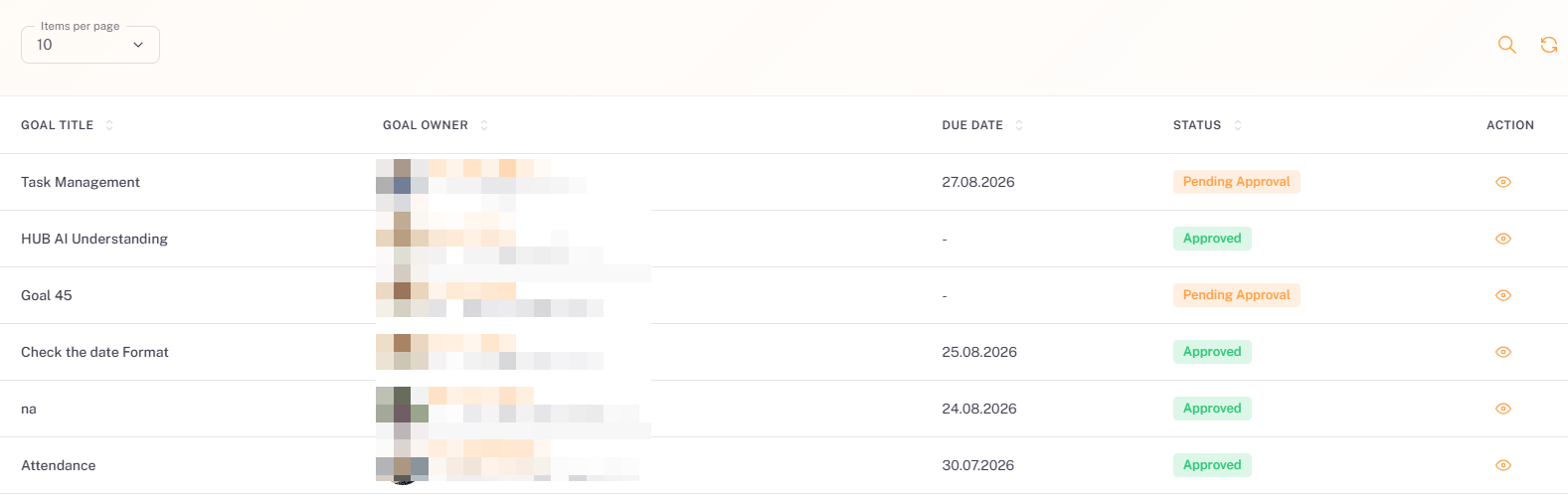
Navigate to Growth Hub → Goal Approvals to open this page.
Column | Description |
Goal Title | The title of the goal whose submission is awaiting review. |
Goal Owner | The employee who created or submitted the goal for approval. May display as — if the creator is not separately tracked. |
Due Date | The original due date of the goal assignment. |
Status | The current approval status: Pending Approval (orange badge), Approved (green badge), or Rejected (red badge). |
Action | Eye icon (👁) to open the full approval detail page for this submission. |
6.2. Reviewing and Approving a Submission
Click the eye icon (👁) on any approval row to open the approval detail page.
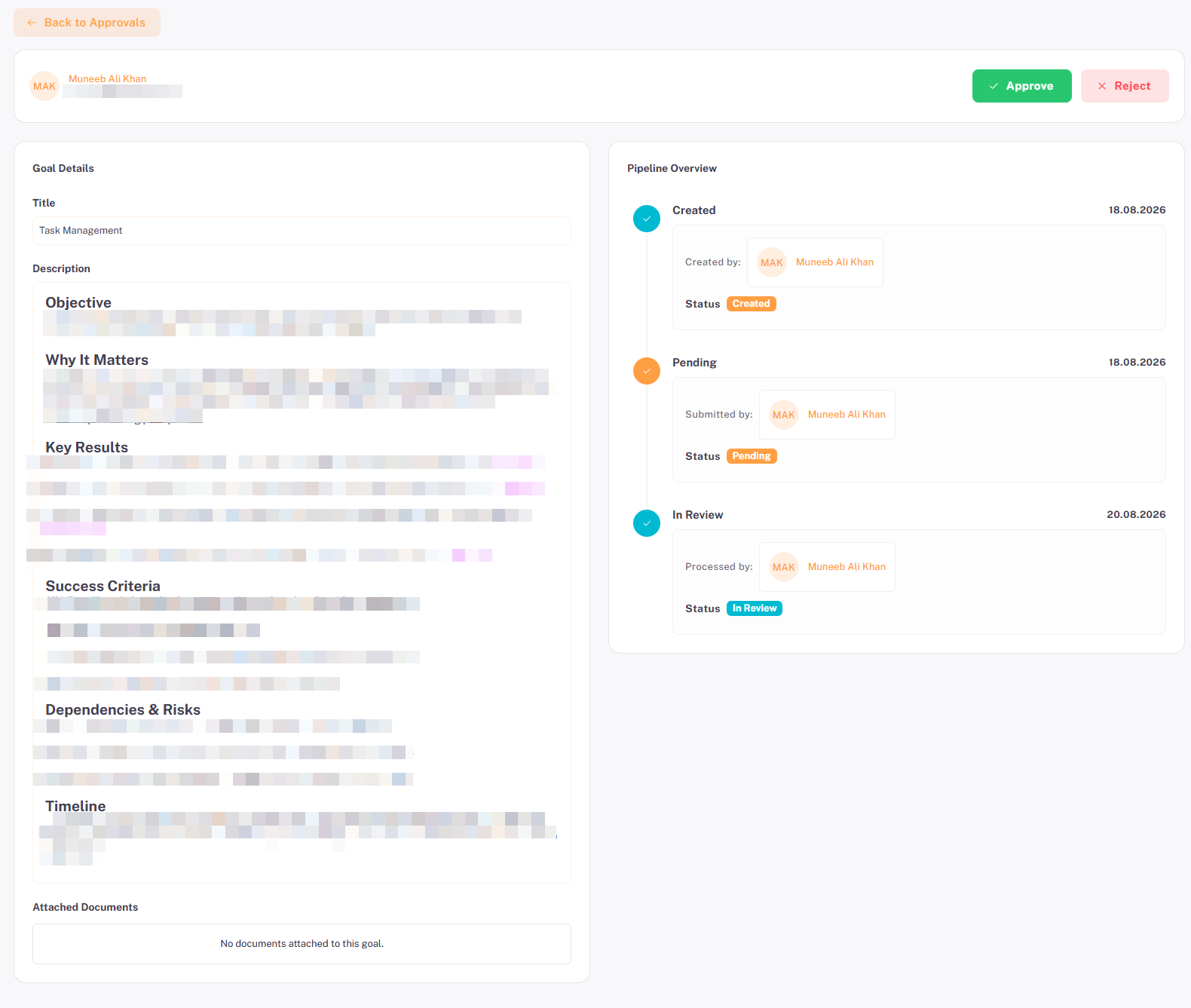
The approval detail page presents all the information needed to make an informed approval decision:
Section | Description |
Assignee Summary | Shows the assignee’s name, designation, current status badge (e.g. Pending Approval), and the Due Date. Approve (green) and Reject (red/pink) action buttons are displayed here. |
Goal Details | Displays the Goal Title and Goal Description as originally entered when the goal was created. |
Attached Documents | Lists any documents attached by the goal creator or the assignee during submission. Each file shows the name, format, and file size, with a download icon to retrieve the file. |
Pipeline Overview | A chronological timeline of all events for this goal assignment: Created, Pending Approval, and any prior stages. Each stage shows the timestamp, who performed the action, the Status badge, and any Comments. |
6.3. Approve or Reject
After reviewing the submission details, use the action buttons in the Assignee Summary area:
Action | Button | Description |
Approve | Approve (green, tick) | Approves the goal submission. The status updates to Approved. The assignee’s Pipeline Overview will record a Goal Approved event with the reviewer’s name and a comment. The goal moves to the Completed category in the Overview dashboard. |
Reject | Reject (pink/red, cross) | Rejects the goal submission. The status updates to Rejected. The assignee is notified and may need to re-submit updated work. The rejection is recorded in the Activity Log with the reviewer’s name and comment. |
⚠️ Important: Approval and rejection actions are recorded immediately in the Activity Log and are visible to the assignee in their My Goals pipeline view. Ensure the submitted work has been fully reviewed — including any attached documents — before taking an approval decision. Rejected submissions remain in the goal system for re-submission; they are not deleted.
Section 7: Goal Types
The Goal Types sub-section allows administrators to define and manage the categories used to classify goals throughout the Performance Evaluation module. Every goal created in All Goals must be assigned a Goal Type, making this configuration a prerequisite before goals can be created. Examples of goal types include Marketing, Technical, Development, AI Drive, and Design — any classification that reflects the organisation’s goal taxonomy.
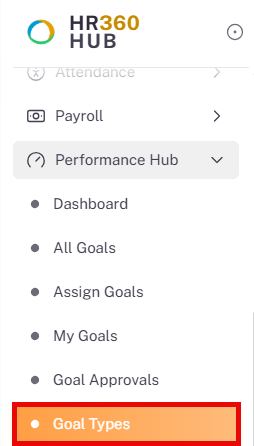
Navigate to Growth Hub → Goal Types to open this page.
7.1. Goal Types List
The Goal Types page displays a paginated list of all configured goal type categories. Use the Search icon (🔍) to filter by name, and the Refresh icon to reload the list.
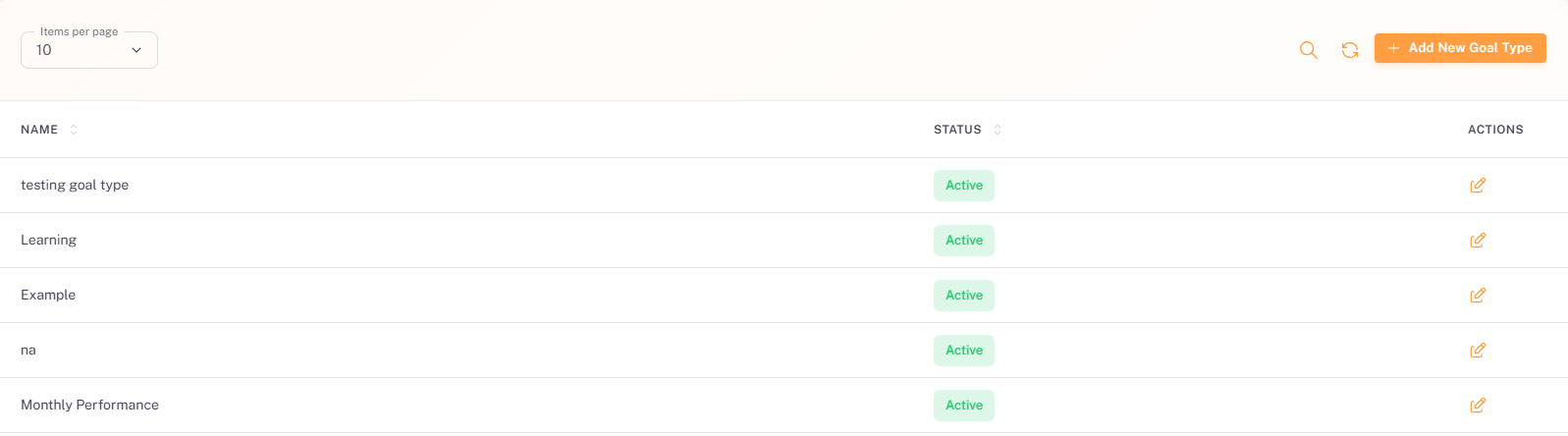
Column | Description |
Name | The display name of the goal type category (e.g. Marketing, Technical, Development). Used in the Goal Type dropdown when creating or editing a goal. |
Status | The current status of the goal type: Active (green badge) or Inactive (orange badge). Only Active goal types are available for selection when creating a new goal. |
Actions | Pencil icon (✏️) to edit the goal type name, status, or description. |
7.2 Adding a New Goal Type
Click the + Add New Goal Type button at the top-right of the page.
The Add New Goal Type form will open.
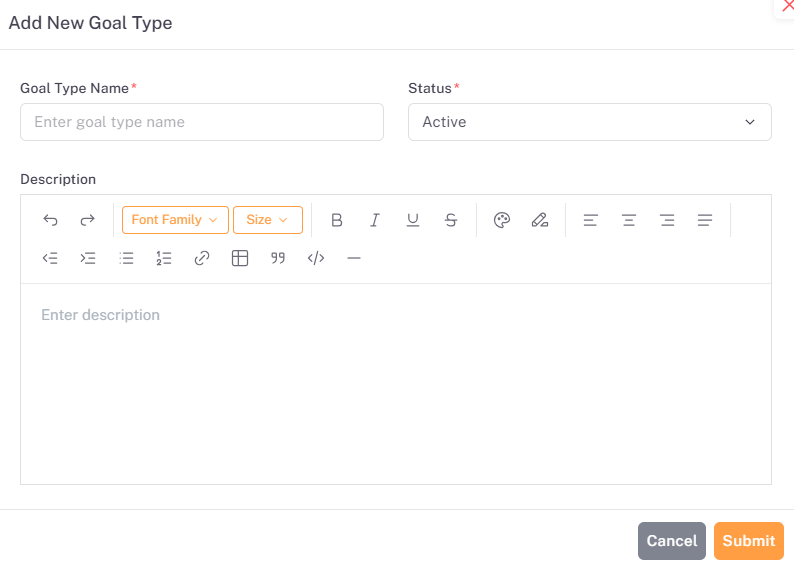
Field | Required | Description |
Goal Type Name | Yes | The name of the goal category as it will appear in the Goal Type dropdown when creating or editing a goal (e.g. Marketing, Technical, Development, AI Drive). |
Status | No | Set to Active by default. Active goal types are available for selection when creating goals. Set to Inactive to retire a goal type without deleting it — existing goals with this type are not affected. |
Description | No | An optional rich-text description providing context for this goal type, such as its intended use, criteria, or example objectives. Supports Bold, Italic, Underline, Strikethrough, and text alignment formatting. |
Click Submit (orange button, bottom-right) to create the goal type, or Cancel to close without saving.
7.3. Editing a Goal Type
Click the pencil icon (✏️) on any goal type row to open the Edit Goal Type dialog, pre-filled with that goal type's current values.
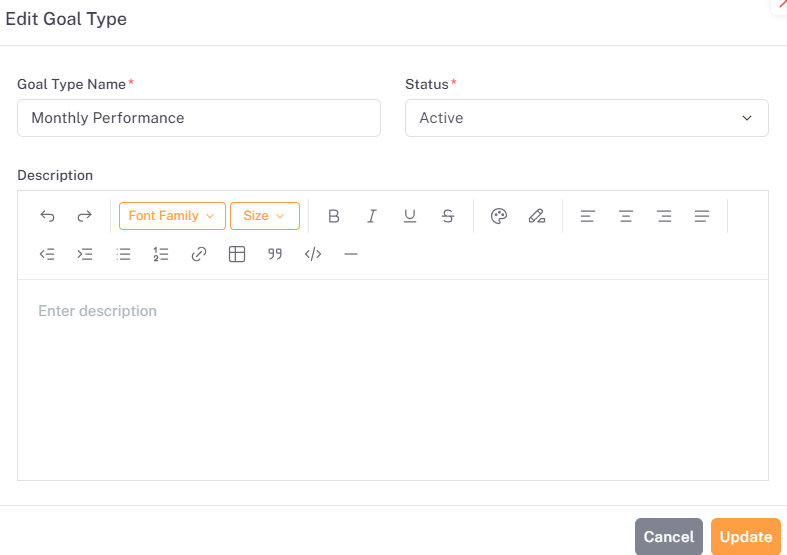
The Edit Goal Type dialog displays the same fields as the Add New Goal Type form — Goal Type Name, Status, and Description — pre-filled with the selected goal type's current values. Update any field as needed.
Click Update (orange button, bottom-right) to save the changes, or Cancel to close the dialog without saving.
📜 Note: Setting a goal type to Inactive removes it from the Goal Type dropdown when creating new goals, but does not affect any existing goals that were previously assigned that type. To permanently remove a goal type, edit it and confirm deletion — only goal types with no associated goals can be deleted. It is recommended to use Inactive status rather than deletion to preserve historical reporting accuracy.
Summary
The following table summarises the Performance Evaluation sub-sections covered in this guide, their primary purpose, and the intended audience.
Sub-section | Primary Purpose | Intended Audience |
Overview | Monitor goal pipeline health via summary dashboard cards and recent activity tables. | HR Manager, Super Admin |
All Goals | Create, edit, and manage all organisational goals. Assign goals to employees or departments. Review full goal details, assignee progress, and activity history. | HR Manager, Super Admin |
Assign Goals | Assign already-created goals to individual employees or entire departments from a centralised page. | HR Manager, Super Admin |
My Goals | View and track personal goal assignments. Monitor progress status and review the full pipeline history of each submission. | All Employees (Assignees) |
Goal Approvals | Review employee goal submissions and approve or reject them. Access attached documents and the full pipeline overview before deciding. | HR Manager, Super Admin |
Goal Types | Create and manage goal type categories (e.g. Marketing, Technical, Development) used to classify goals across the system. | HR Manager, Super Admin |