

Overview:
The License Management module in HR360Hub enables organizations to record, track, and manage employee licenses — such as driving licenses, pharmacy licenses, and other professional certifications — directly within the portal. Once configured, the module surfaces a dedicated License tab on every employee profile, allowing HR staff to attach license records, set expiration dates, and receive automated renewal reminders.
📜 Note: The License Management module must be enabled through the Roles & Permissions settings before it becomes visible in the portal. This configuration must be completed by a Super Admin or Application Admin before any other users can access the module.
What This Guide Covers
Part | Description |
Part 1 — Configure Roles & Permissions | Enable License Management access for the Super Admin role by setting the correct scope and permissions in the Roles & Permissions module. |
Part 2 — Configure License Types & Sub Types | Set up the license categories (types) and their sub-classifications (sub types) that will be available when adding licenses to employee profiles. |
Part 3 — Add a License to an Employee Profile | Use the License tab on an employee profile to attach a license record, set expiry dates, and configure renewal reminders. |
💡 Tip: These three parts must be completed in order. Role permissions must be configured first before the License Management module becomes available. License Types must be set up before licenses can be added to employee profiles.
Prerequisites:
Requirement | Details |
Super Admin access | Only a Super Admin or Application Admin can configure Roles & Permissions. Ensure you are logged in with Super Admin credentials before proceeding. |
Employee records | At least one employee record must exist in the system before a license can be attached to an employee profile. |
License Types | License Types and Sub Types must be configured in the License Management module (Part 2) before licenses can be added to employee profiles (Part 3). |
Part 1: Configure Roles & Permissions
Before the License Management module is accessible, the correct scope and permissions must be enabled for the relevant role. This section walks through enabling access for the Super Admin role. The same steps apply to any other role that requires access to the module.
Step 1 — Log In as Super Admin
Log in to the HR360Hub portal using your Super Admin credentials. Ensure you have full administrative access before proceeding.
Step 2 — Navigate to Roles & Permissions
In the left-hand sidebar, locate and click Roles & Permissions to expand the module. Select Organizational Roles & Permissions to view the list of all configured roles.
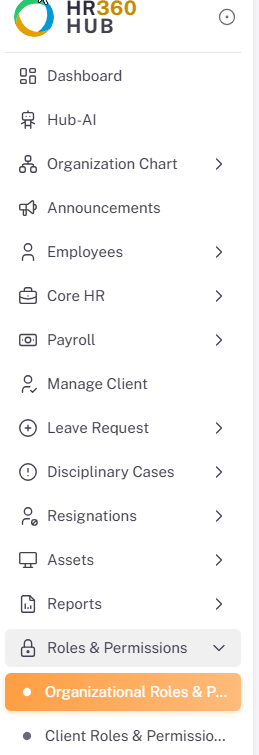
Step 3 — Edit the Super Admin Role
From the list of roles, locate the Super Admin role and click the edit (pencil) icon to open the role configuration form.
Step 4 — Set Permissions for the Employees Module
Within the role configuration form, scroll to the Employees module section. Select the appropriate scope and enable the required permissions for User License management. This controls who can view and manage license records on employee profiles.
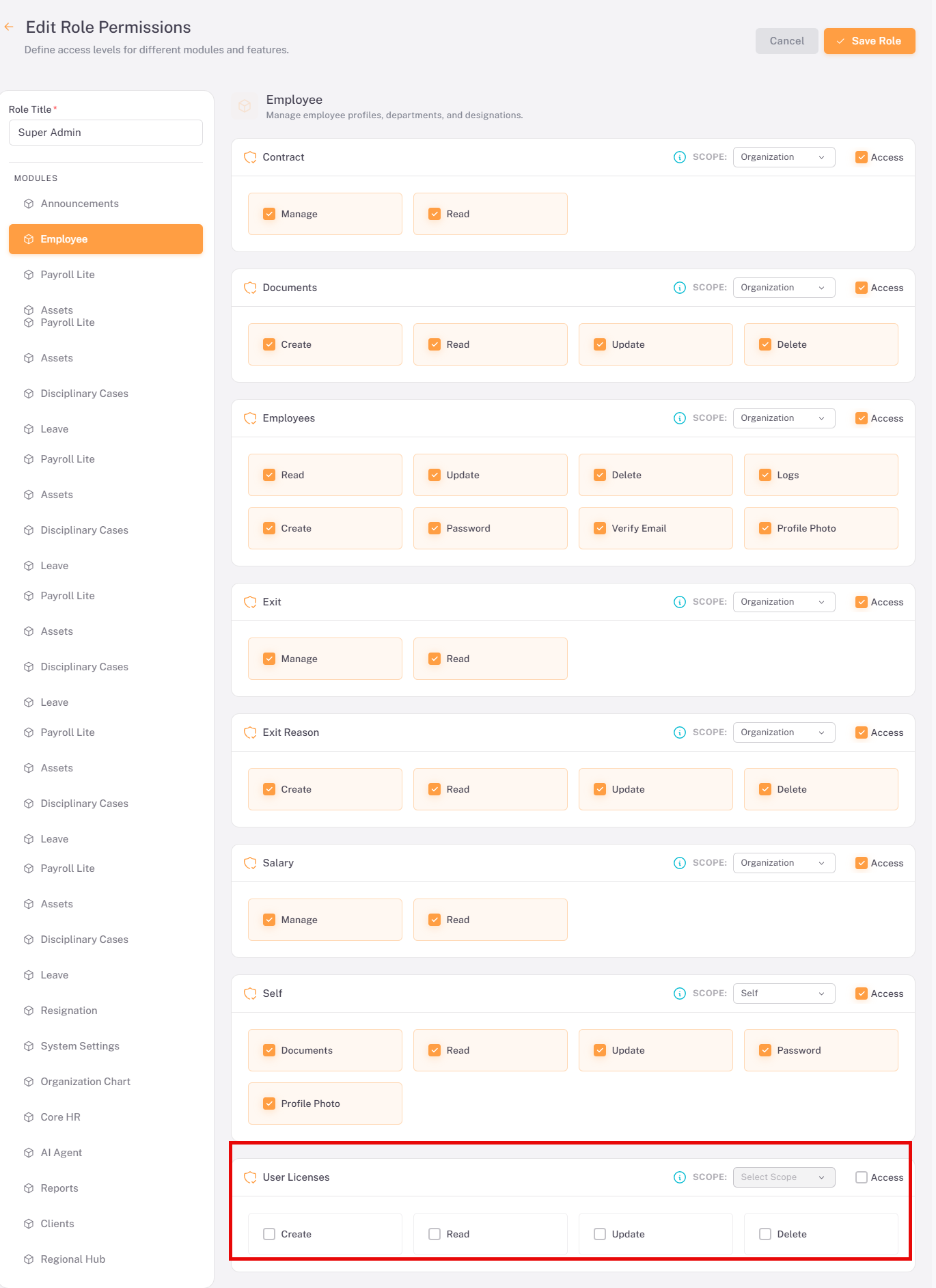
📜 Note: The scope you select here (Organization, Territory, Team, or Self) determines the breadth of access. For Super Admin, select Organization to allow full access across all employees and territories. Refer to the Roles & Permissions Vocabulary Guide for a full explanation of each scope.
Step 5 — Set Permissions for the Core HR Module
Scroll to the Core HR module section within the same role configuration form. Select the appropriate scope and enable the required permissions for License Types. This allows the role to create, view, and manage license type configurations.
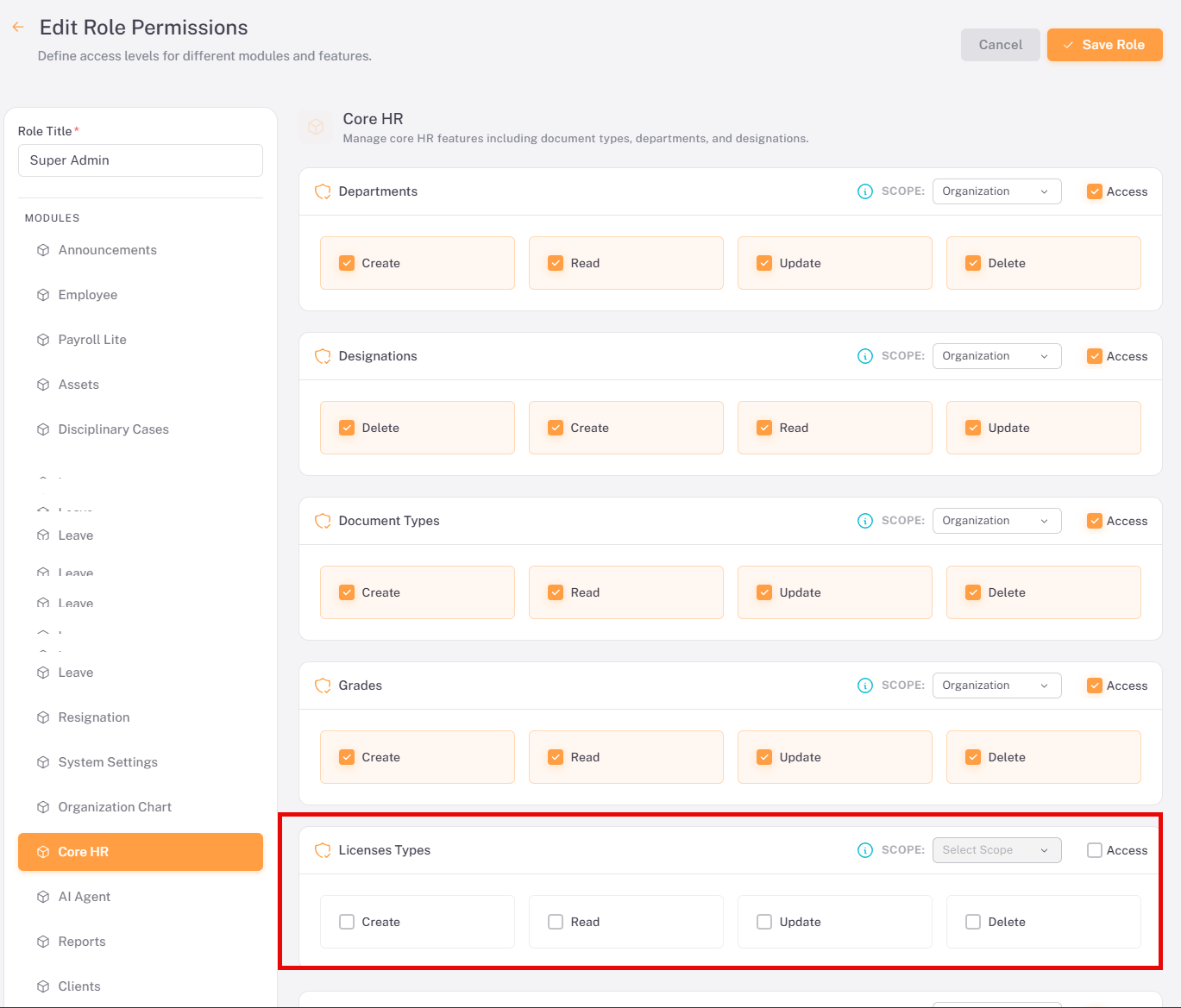
Step 6 — Save the Role
Once all required checkboxes have been selected and the scope has been set for both the Employees and Core HR modules, click the Save Role button to apply the updated permissions.
💡 Tip: After saving, refresh the portal page. The License Management module will now appear in the sidebar navigation. If it does not appear after refreshing, verify that the permissions were saved correctly by re-opening the role configuration form.
Step 7 — Verify the Module is Visible
After refreshing the page, confirm that the License Management module now appears in the portal sidebar. It should be visible as a new menu item, confirming that the role permissions have been applied successfully.
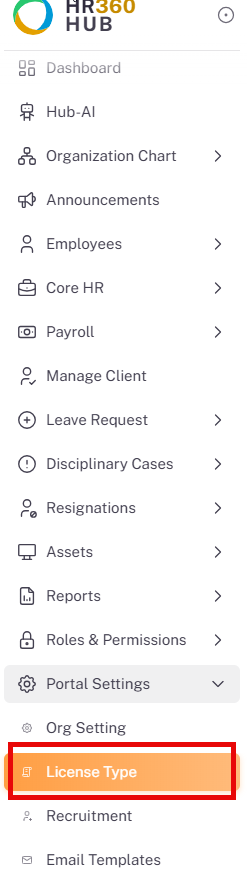
Part 2: Configure License Types & Sub Types
With the License Management module now accessible, the next step is to define the license categories that will be available when adding licenses to employee profiles. This is done by creating License Types and, optionally, Sub Types under each License Type.
Step 8 — Navigate to License Management
In the left-hand sidebar, click License Management to open the module. The module opens on the License Types tab by default.
Step 9 — Add a New License Type
On the License Types tab, click the + Add New button at the top-right of the page to open the Add License Type dialog.
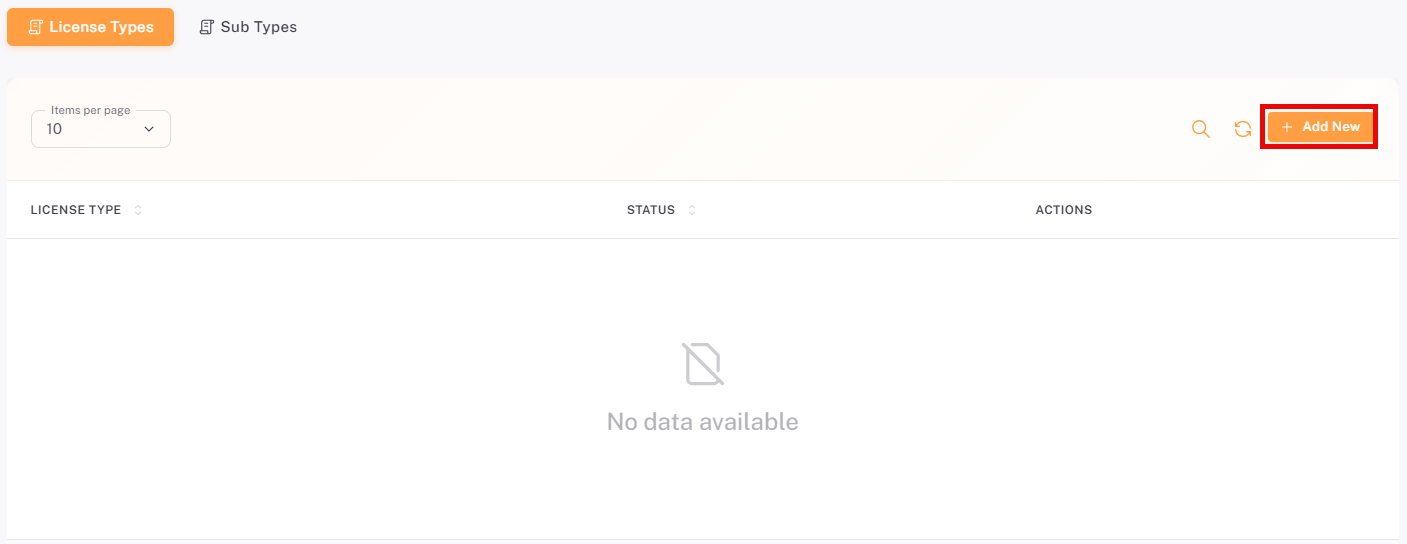
Step 10 — Fill In License Type Details
Complete the Add License Type form with the required information:
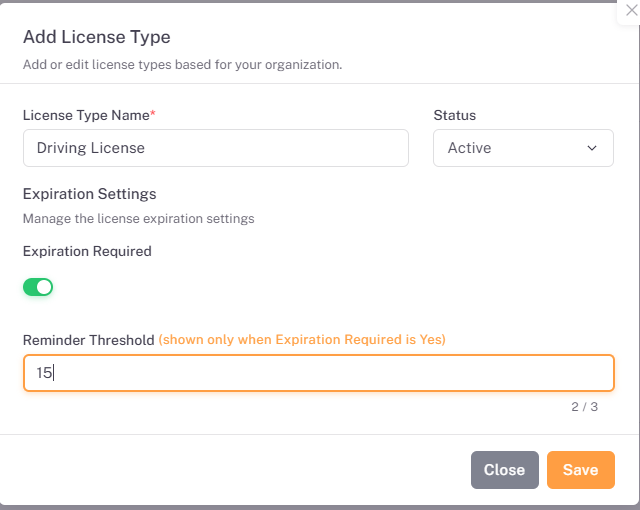
Field | Required | Description |
License Type Name | Yes | Enter a descriptive name for the license category (e.g. Driving License, Pharmacy License, Professional Certification). |
Status | Yes | Set to Active to make this license type available for use. Set to Inactive to disable it without deleting it. |
Expiration Required | No | Toggle this switch ON if licenses of this type have an expiry date. When enabled, the Reminder Threshold field becomes visible. |
Reminder Threshold | Conditional | Visible only when Expiration Required is toggled ON. Enter the number of days before expiry that the system should trigger a renewal reminder (e.g. entering 30 triggers a reminder 30 days before the license expires). |
Click Save to create the license type, or Close to discard.
📜 Note: The Reminder Threshold field is hidden when Expiration Required is off. Toggle Expiration Required on first to reveal and configure the reminder threshold for that license type.
Step 11 — Add Sub Types (Optional)
Sub Types allow each License Type to be further divided into specific sub-classifications. For example, a "Driving License" type might have Sub Types such as LTV, HTV, and Motorcycle. To add sub types, navigate to the Sub Types tab within the License Management module and click + Add New.
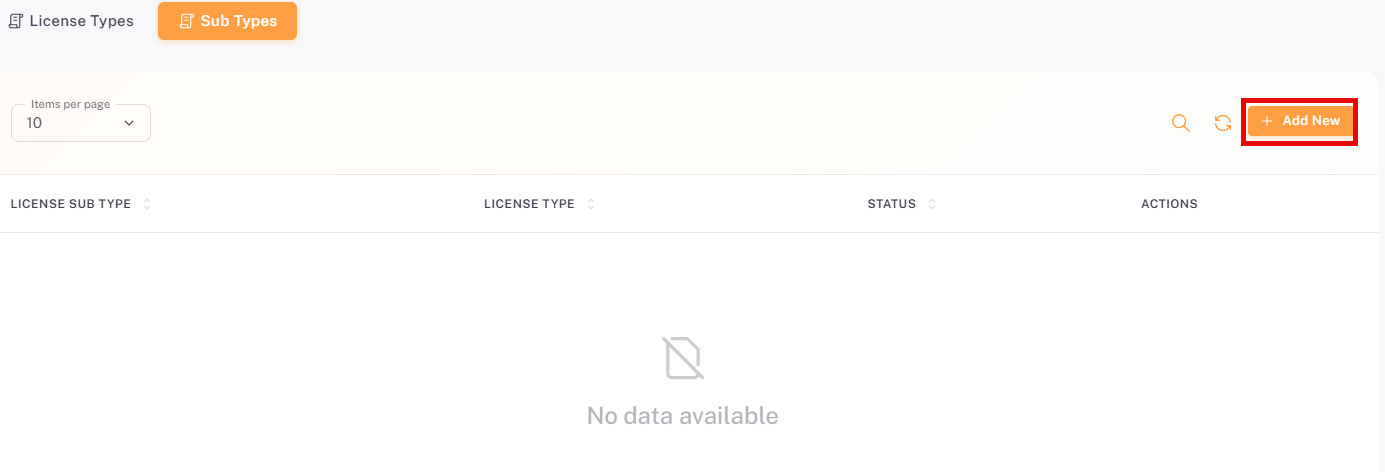
Step 12 — Fill In Sub Type Details
Complete the Add Sub Type dialog with the required information:
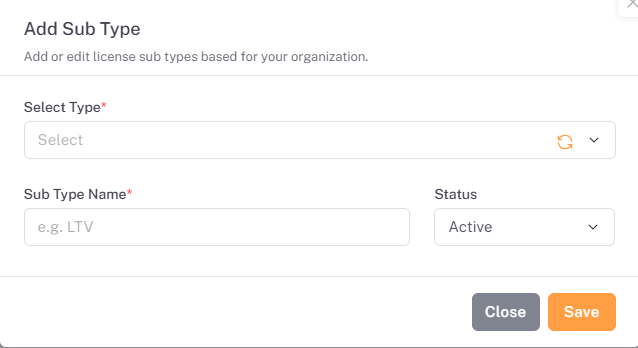
Field | Required | Description |
Select Type | Yes | Choose the parent License Type this sub type belongs to from the dropdown (e.g. Driving License). |
Sub Type Name | Yes | Enter the name of the sub type (e.g. LTV, HTV, Motorcycle). |
Status | Yes | Set to Active by default. Change to Inactive to disable the sub type without deleting it. |
Click Save to create the sub type, or Close to discard.
💡 Tip: Sub Types are optional but recommended for organizations with multiple license classifications under a single type. Adding sub types now ensures employees can be categorised accurately when their license records are created.
Part 3: Add a License to an Employee Profile
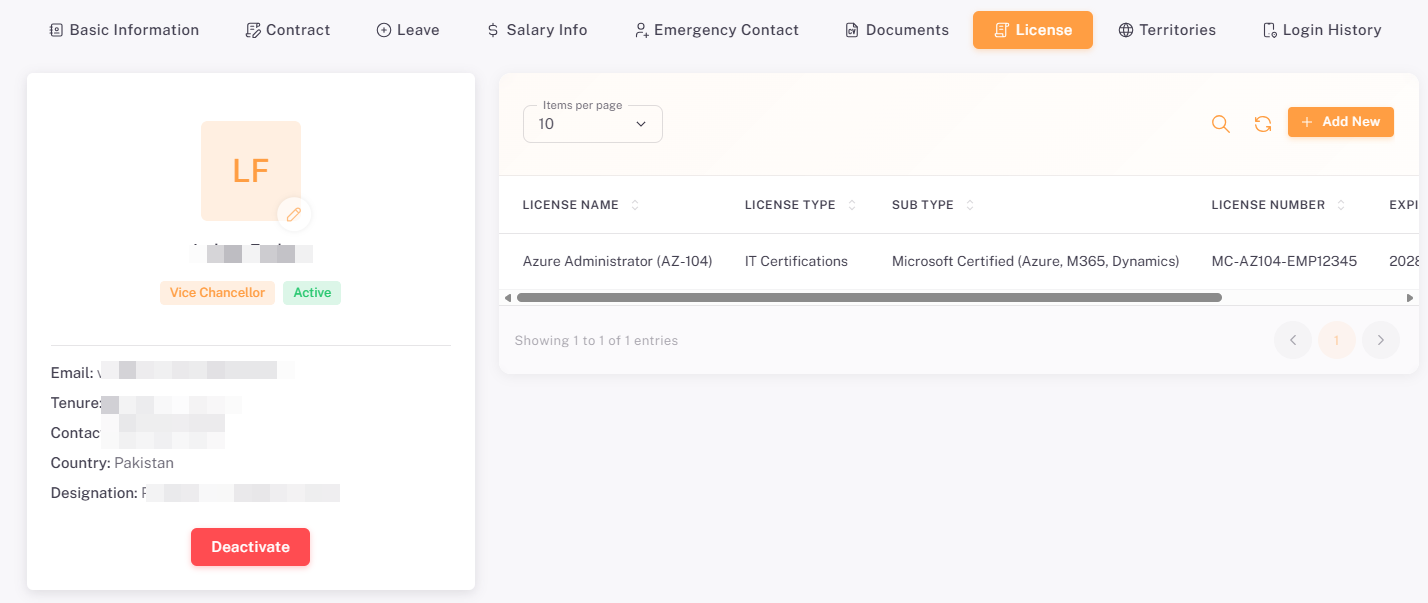
Once License Types (and optionally Sub Types) have been configured, the License tab will automatically appear on all employee profiles. HR staff can then attach license records directly to individual employees from within their profile.
Step 13 — Open the Employee Profile
Navigate to the Employees module and open the profile of the employee to whom you want to add a license. The employee profile will now display a License tab alongside the other profile tabs.
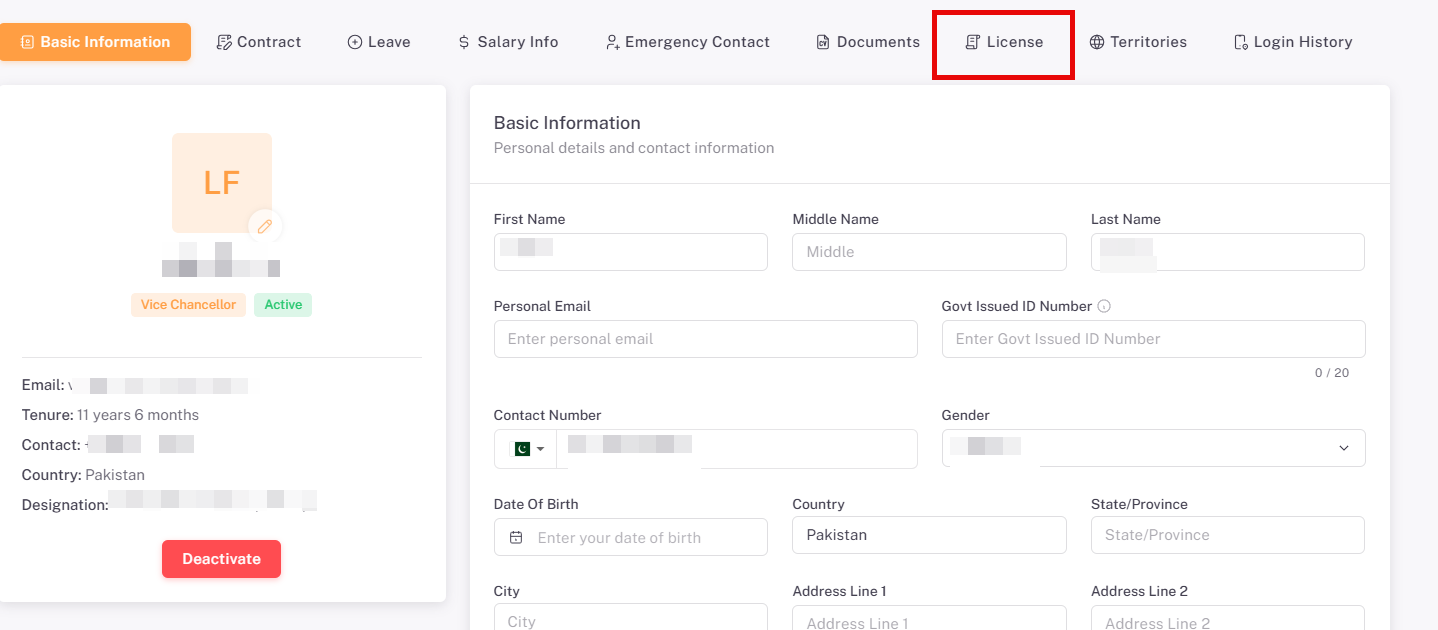
Step 14 — Add a New License
Click on the License tab to open it, then click the + Add New button to open the Add License form.
Step 15 — Fill In the License Details
Complete the Add License form with the required information for the employee's license:
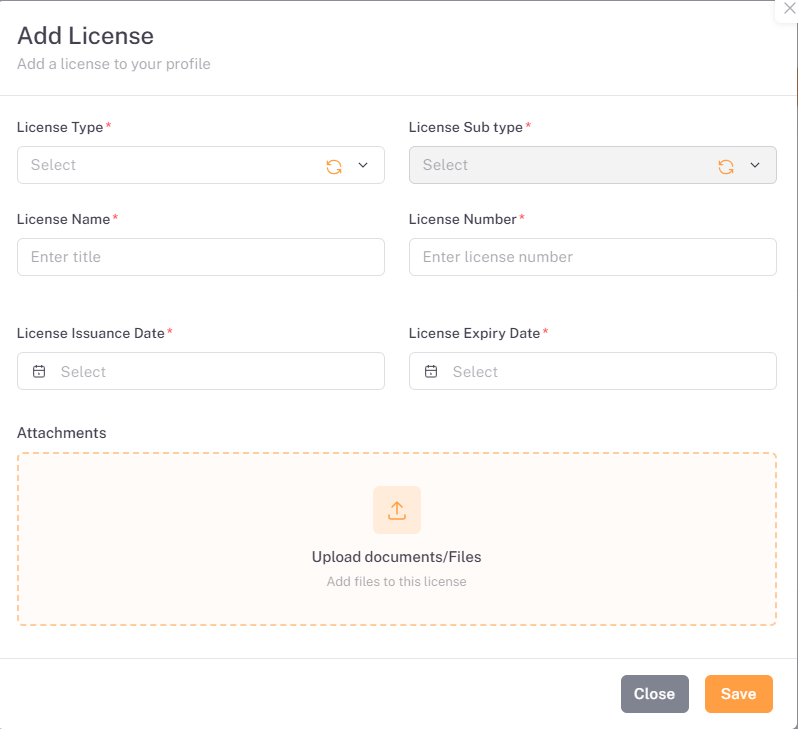
Field | Required | Description |
License Type | Yes | Select the license category from the dropdown (e.g. Driving License, Pharmacy License). Only active license types configured in Part 2 will appear here. |
Sub Type | No | Select the sub classification of the license if applicable (e.g. LTV, HTV). Only sub types linked to the selected License Type will appear. |
License Number | Yes | Enter the official license number or identifier as printed on the employee's license document. |
Issue Date | Yes | The date on which license was issued to the employee. |
Expiry Date | Conditional | Required if the selected License Type has Expiration Required enabled. Enter the date the license expires. |
Attachment | No | Upload a scanned copy or digital image of the license document for record-keeping purposes. |
Click Save to attach the license to the employee profile, or Close to discard.
💡 Tip: Uploading an attachment (e.g. a scanned copy of the license) is strongly recommended as it provides a complete digital record and reduces the need to locate physical documents during audits or renewals.
📜 Note: The same workflow described in Parts 1–3 can be followed to configure and enable the License Management module for any other role (e.g. HR Manager, Application Admin). Simply edit the relevant role in the Roles & Permissions module and assign the appropriate scope and permissions.
Summary:
The License Management module provides a structured, end-to-end workflow for tracking employee licenses within HR360Hub. The three-part setup process — Roles & Permissions configuration, License Type setup, and employee license attachment — ensures that licenses are accurately recorded, categorised, and monitored for expiry.
Part | Steps | Key Outcome |
Part 1 — Configure Roles & Permissions | Steps 1–7 | License Management module becomes visible in the portal sidebar for the configured role. |
Part 2 — Configure License Types & Sub Types | Steps 8–12 | License categories and sub-classifications are defined and available for use on employee profiles. |
Part 3 — Add a License to an Employee Profile | Steps 13–15 | Individual employee license records are created with issue/expiry dates, sub type, and optional document attachment. |
💡 Best Practice: Configure expiration reminders (Reminder Threshold) on all license types that have a fixed expiry date. This ensures HR staff receive proactive notifications before licenses lapse, reducing compliance risks and avoiding gaps in employee license coverage.