

Overview:
The License Type module allows administrators to define and manage the types of licenses tracked for employees within the organisation. Each license type can be configured with expiration settings and reminder thresholds to ensure timely renewals. License types are further organised into Sub Types, allowing for granular categorisation of licenses under a parent type.
📜 Note: Only users with Super Admin or HR Manager roles can access the Core HR module. If you cannot see the Core HR menu in the sidebar, contact your system administrator to verify your role and permissions.
Prerequisites:
Setup requirement: License Types can be configured at any time. Sub Types require at least one License Type to exist before they can be created.
Accessing License Type:
- Log in to the HR360Hub portal with your administrator credentials.
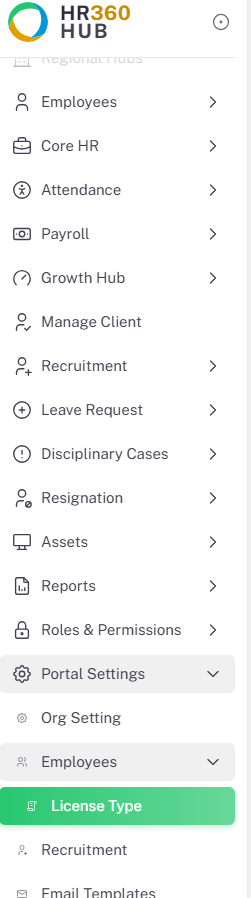
- On the left-hand sidebar, locate and click Portal Settings to expand its sub-menu.
- Click License Type to open the License Type management page.
- The page opens on the License Types tab by default. Click Sub Types to switch to the sub-type list.
Tab 1: License Types
License Types List:
Navigate to Portal Settings → License Type to view the License Types tab. The list displays all configured license types in the organisation.
Column | Description |
License Type | The name of the license type (e.g. Driving License, Pharmacy, Email Expiry). |
Status | Current status of the license type: Active (green badge) or Inactive. |
Actions | Pencil icon (✏️) to edit the license type. Delete icon (🗑) to remove it. |
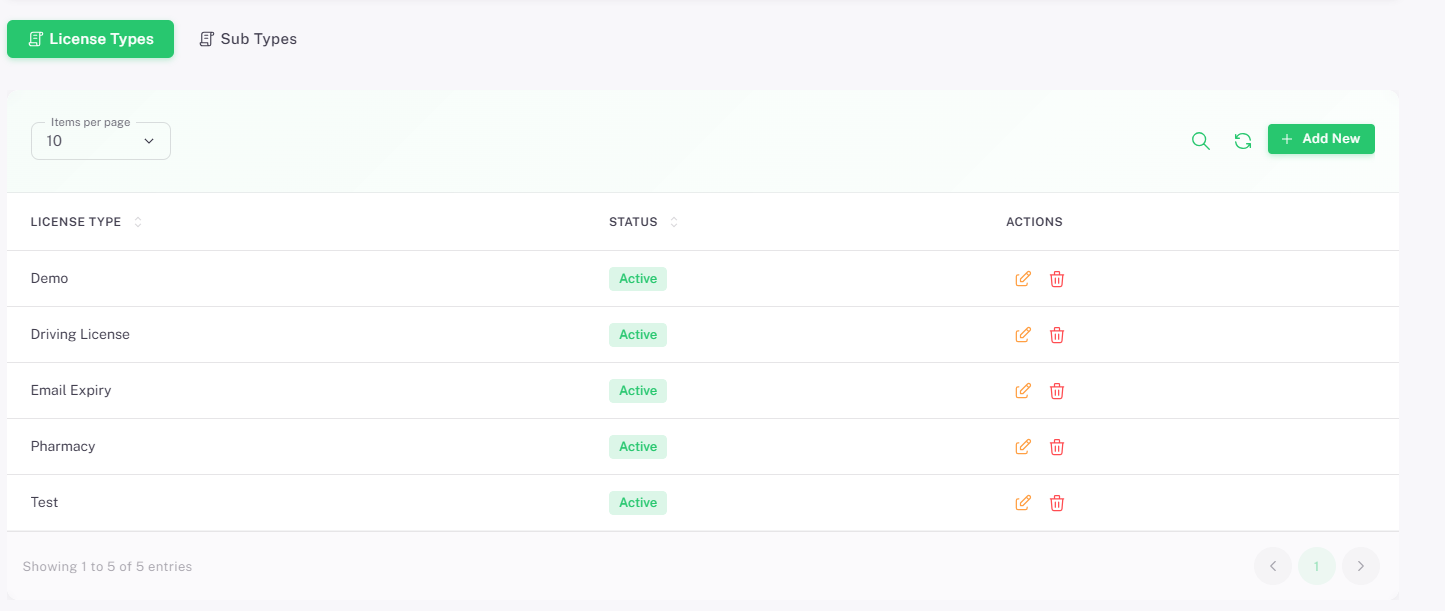
💡 Tip: Use the Search icon (🔍) at the top-right to locate a license type by name. The Refresh icon reloads the list to reflect recent changes. Use the Items per page dropdown to control how many entries are shown per page.
Adding a New License Type:
· Click the + Add New button at the top-right of the License Types tab.
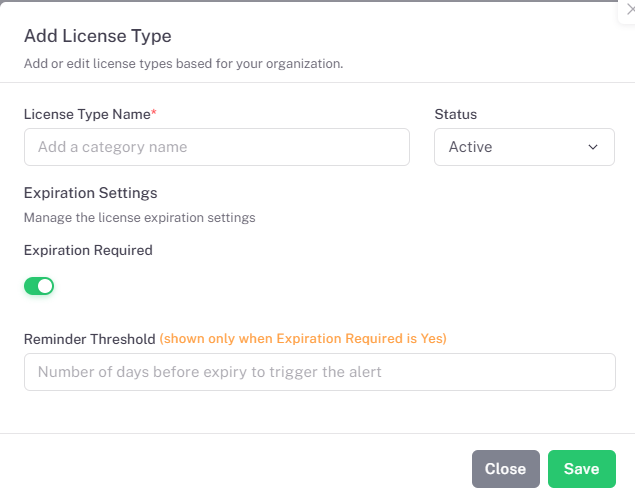
· The Add License Type dialog will open.
General Information:
Field | Required | Description |
License Type Name | Yes | A descriptive name for the license type (e.g. Driving License, Pharmacy, Email Expiry). This name will appear in employee license records. |
Status | Yes | Set to Active by default. Change to Inactive to disable the license type without deleting it. |
Expiration Settings:
The Expiration Settings section controls whether this license type has an expiry date and how far in advance reminders should be triggered.
📜 Note: The Reminder Threshold field is hidden when Expiration Required is toggled off. Toggle Expiration Required on first to reveal and configure the reminder threshold.
Field | Required | Description |
Expiration Required | No | Toggle switch. When enabled (green), the license type requires an expiration date to be recorded against each employee license. When disabled, no expiry date is required. |
Reminder Threshold | Conditional | Shown only when Expiration Required is toggled ON. Enter the number of days before the expiry date that a reminder alert should be triggered (e.g. entering 5 triggers an alert 5 days before the license expires). |
Editing a License Type:
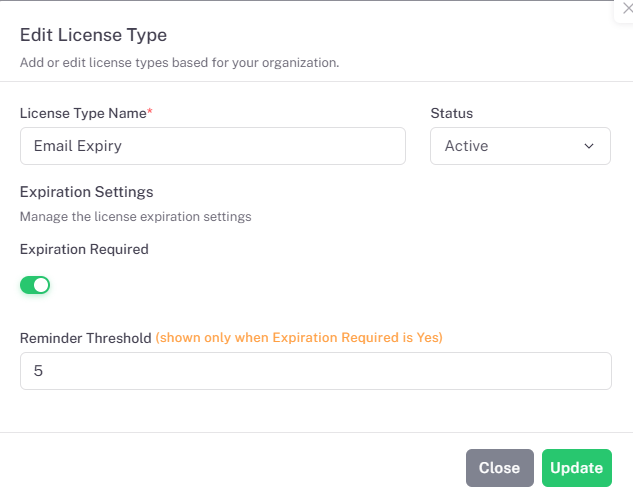
· Click the pencil icon (✏️) on any license type row to open the Edit License Type dialog.
· All fields from the Add License Type form are available for editing, pre-populated with the current values.
Field | Description |
License Type Name | Update the name of the license type as required. |
Status | Change between Active and Inactive to enable or disable the license type. |
Expiration Required | Toggle on or off to change whether this license type requires an expiration date. |
Reminder Threshold | Adjust the number of days before expiry that reminders are triggered. Only visible when Expiration Required is on. |
Click Update (green button, bottom-right) to save the changes, or Close to discard.
⚠️ Important: Changing the Expiration Required setting or Reminder Threshold on an existing license type will affect all future license records created under this type. Existing employee license records already saved will not be retroactively updated.
Deleting a License Type:
· Click the delete icon (🗑) on the license type row you wish to remove.
· Confirm the deletion when prompted.
⚠️ Important: Deleting a license type is permanent and cannot be undone. Only delete a license type if it is no longer needed and has no active Sub Types linked to it. Consider setting the status to Inactive instead of deleting to preserve historical records.
Tab 2: Sub Types
Sub Types List:
Click the Sub Types tab at the top of the License Type page to switch to the sub-type list. Sub Types allow each License Type to be further divided into specific classifications.
Column | Description |
License Sub Type | The name of the sub-type (e.g. LTV, Medical, Demma). |
License Type | The parent License Type this sub-type belongs to (e.g. Driving License, Pharmacy, Demo). |
Status | Current status: Active (green badge) or Inactive. |
Actions | Pencil icon (✏️) to edit the sub-type. Delete icon (🗑) to remove it. |
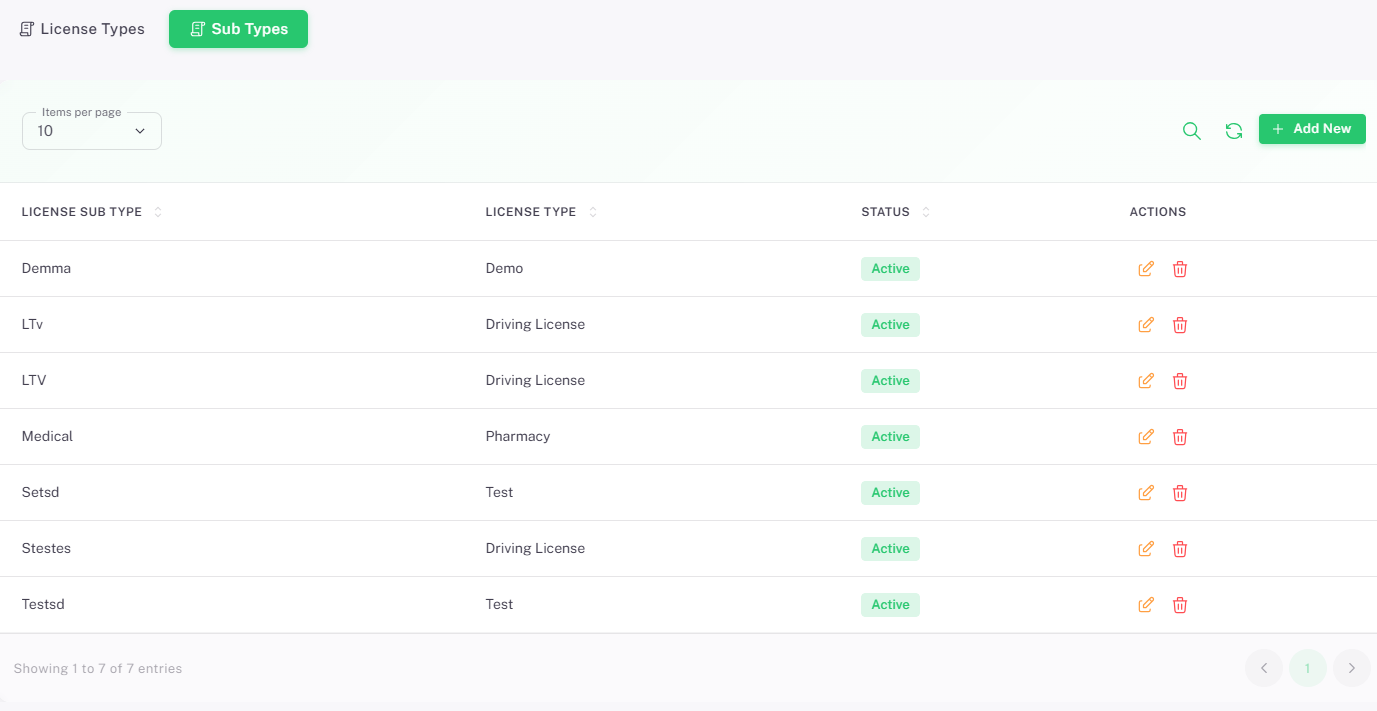
💡 Tip: Use the Search icon (🔍) to quickly locate a sub-type by name. The Refresh icon reloads the list. Use the Items per page dropdown to control entries shown per page.
Adding a New Sub Type:
· Ensure you are on the Sub Types tab.
· Click the + Add New button at the top-right of the page.
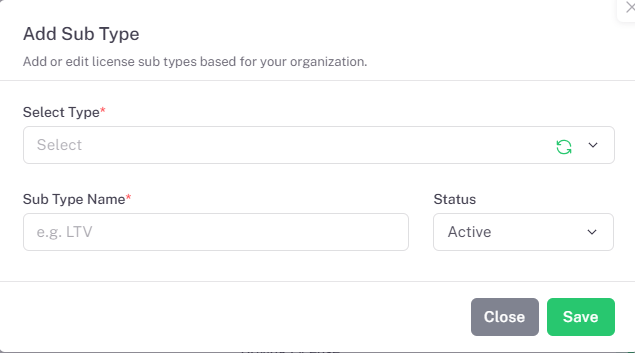
· The Add Sub Type dialog will open.
Field | Required | Description |
Select Type | Yes | A dropdown to select the parent License Type this sub-type will belong to (e.g. Driving License, Pharmacy). The dropdown is searchable — click the refresh icon within the dropdown to reload the list of available license types. |
Sub Type Name | Yes | The name of the sub-type (e.g. LTV, Medical). Placeholder text shows an example format. |
Status | Yes | Set to Active by default. Change to Inactive to disable the sub-type without deleting it. |
Click Save (green button, bottom-right) to create the sub-type, or Close to discard.
📜 Note: A Sub Type must always be linked to a parent License Type. If no License Types appear in the Select Type dropdown, create at least one License Type first under the License Types tab.
Editing a Sub Type:
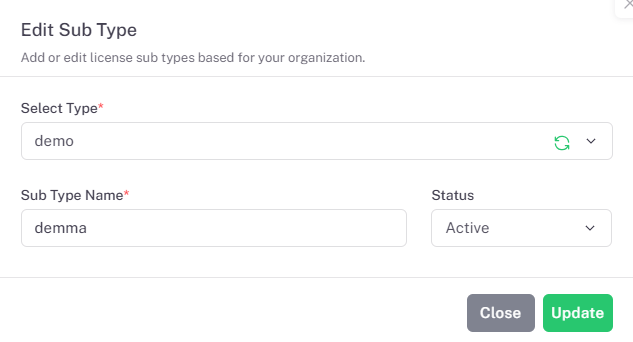
· Click the pencil icon (✏️) on any sub-type row to open the Edit Sub Type dialog.
· All fields are editable and pre-populated with the current values.
Field | Description |
Select Type | Change the parent License Type this sub-type is linked to. Use the refresh icon in the dropdown to reload available license types. |
Sub Type Name | Update the name of the sub-type. |
Status | Toggle between Active and Inactive. |
Click Update (green button, bottom-right) to save the changes, or Close to discard.
Summary:
The License Type sub-module provides a structured framework for categorising and tracking employee licenses within HR360Hub. By defining license types with configurable expiration and reminder settings, and organising them further into sub-types, administrators can ensure that all employee licenses are accurately tracked and renewed on time.
· Purpose: Define and manage license categories (License Types) and their sub-classifications (Sub Types) for employee license tracking.
· Two-tab Structure: The module is split into License Types (parent categories with expiration settings) and Sub Types (specific classifications under each license type).
· Expiration Management: Each license type can be configured to require an expiration date and a reminder threshold (in days) to trigger alerts before the license expires.
· Reminder Threshold: The Reminder Threshold field is conditional — it only appears when Expiration Required is toggled on.
· Sub Type Dependency: Sub Types must always be linked to a parent License Type. At least one License Type must exist before Sub Types can be created.
· Inactive vs Delete: Setting a license type or sub-type to Inactive is preferred over deletion, as it preserves historical employee license records.
💡 Best Practice: Configure License Types and their expiration settings before onboarding employees or assigning licenses. Plan your Sub Types in advance to ensure consistent categorisation — for example, defining all Driving License sub-types (LTV, HTV, Motorcycle) before assigning licenses ensures employees are correctly classified from day one.